How to Use FORMULATEXT Function in Excel (Video in Khmer)
Learn how to use FORMULATEXT function in Excel step-by-step to display exact formula text instead of result.
Hello everyone! Today I show you very easy step-by-step how to use FORMULATEXT() function in Microsoft Excel.
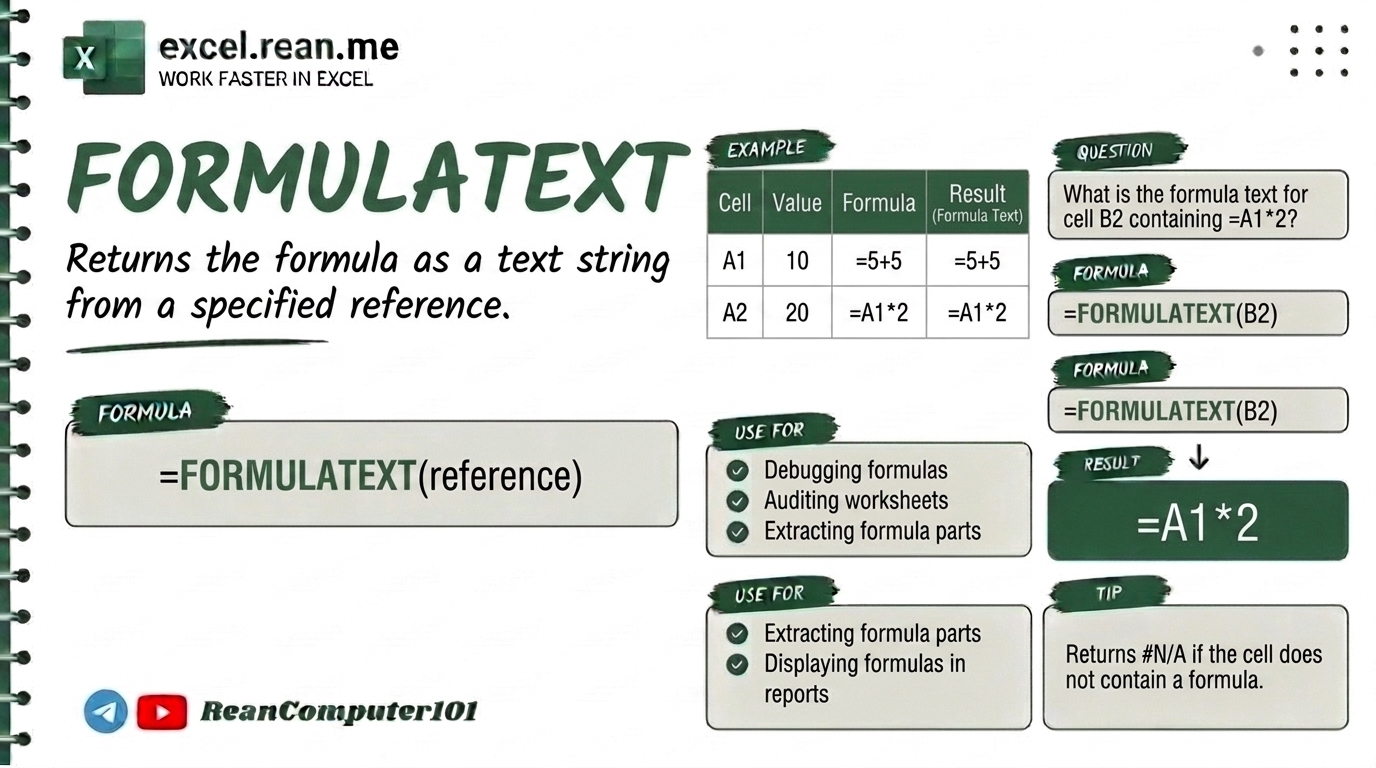
Sometimes when you work in Excel, you want to show other people the exact formula inside a cell without clicking double-click on it. FORMULATEXT function helps you convert formula into plain text string so you can print, audit, or teach formulas very easily!
📚 Related Tutorial: Learn more foundational formulas in our guide on Top 15 Basic Excel Formulas for Beginners ↗!
🛠️ What is FORMULATEXT Function?
The FORMULATEXT function looks at a cell and returns its formula as a text string (starting with =).
Formula Syntax:
=FORMULATEXT(reference)
reference: The target cell containing the formula you want to display.
🛠️ Simple Step-by-Step Example
Suppose cell B2 contains a formula =SUM(A1:A10) and displays result 500.
If you type in cell C2:
=FORMULATEXT(B2)
- Result:
=SUM(A1:A10)
Now you can see the exact formula written in cell B2 directly on your screen!
⚠️ Important Things to Know (#N/A Error)
If FORMULATEXT returns #N/A error, check these 3 reasons:
- Target cell has no formula: If cell
B2has only a number or text like100(not a formula starting with=),FORMULATEXTreturns#N/A. - Formula is hidden: If sheet is protected and formula is hidden,
FORMULATEXTwill return#N/A. - Invalid cell reference: If you select a whole range like
A1:A10, make sure you use Excel 2013 or newer!
💡 Easy Pro Tips for FORMULATEXT
- Show Formulas Across Entire Sheet Quickly: You don't need
FORMULATEXTfor every cell if you just want to check formulas quickly. PressCtrl + ~(Control + Tilde) to toggle all formulas visible across your whole Excel sheet! - Combine with IFNA for Clean Display: Prevent
#N/Aerrors when pointing to normal text cells:=IFNA(FORMULATEXT(B2), "No formula") - Great for Documentation: Use
FORMULATEXTnext to your calculation cells to create automatic documentation for your Excel reports or student assignments!
Related Tutorials
Opens in new tab ↗How to Use FIND Function in Excel + Tips
Learn how to use FIND function in Excel step-by-step to find the position number of a text inside another text.
How to Use FORECAST Function in Excel + Tips (Video in Khmer)
Learn how to use FORECAST function in Excel step-by-step to predict future values based on historical data with simple examples and Khmer video guides.
How to Use FILTER Function in Excel + Tips
Learn how to use FILTER function in Excel step-by-step to filter data based on your conditions.