How to Highlight Data in Excel: Step-by-Step Khmer Video Guide
Learn how to highlight cells, full rows, expire dates, working experience, and weekend days automatically with conditional formatting video collection in Khmer.
Hello everyone! This is full collection of video tutorials about how to highlight data in Excel step-by-step with Khmer voice explanation.
Conditional formatting help your spreadsheet look smart and change color automatically when data change!
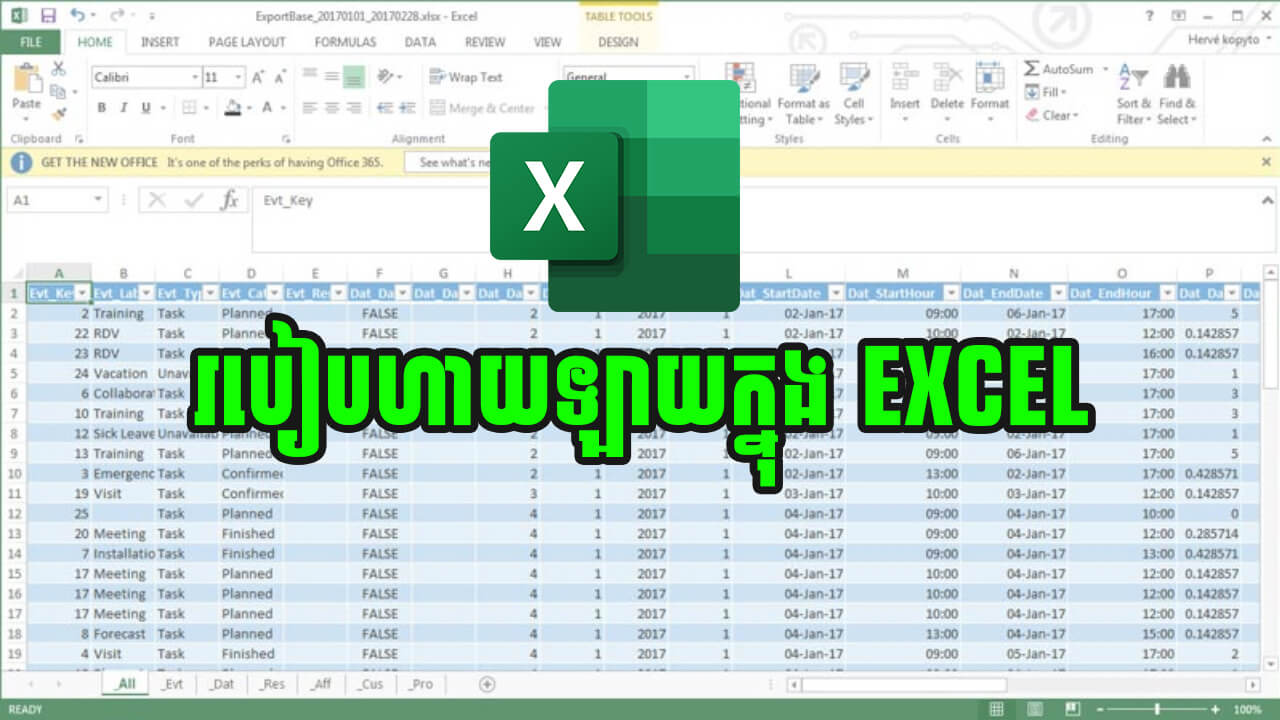
1. Highlight Cells with Color Based on Condition
Learn basic conditional formatting rule to change cell background color when value is greater than, less than, or equal to target number.
2. Highlight Full Row Based on Condition
Instead of highlight only 1 cell, learn how to use formula like =$C2="Passed" to highlight entire table row automatically!
3. Automatically Highlight Data Based on Text & Status
Learn how to auto highlight cell background when text matches "Completed", "Pending", or "Urgent".
4. Highlight Staff Working Experience > 2 Years
HR tip: Use date calculation formula =DATEDIF(start_date, TODAY(), "Y") > 2 to highlight staff who work more than 2 years for bonus or promotion.
5. Highlight Expire Dates Automatically
Stock & Inventory tip: Auto highlight products or contracts that will expire within 30 days using =cell <= TODAY()+30.
6. Advanced Custom Rules for Highlight Cells
Learn how to manage rules, clear rules, and set custom fill colors with borders.
7. Auto Highlight Weekend Days (Saturday & Sunday)
Use WEEKDAY() function inside conditional formatting =WEEKDAY(A2, 2) > 5 to auto highlight Saturday and Sunday columns in attendance sheets.
8. Highlight Every Sunday Only in Excel
Schedule & Roster tip: Highlight every Sunday column using formula =WEEKDAY(A2, 1) = 1 or =TEXT(A2, "ddd") = "Sun".
💡 Pro Tips for Highlighting Data in Excel
- Lock Column for Full Row Highlight: When writing custom formula rule for full row, lock column letter with
$like=$B2="Paid". If you write=B2="Paid", color will shift incorrectly! - Clear Rules Easily: Go to Home → Conditional Formatting → Clear Rules → Clear Rules from Entire Sheet if color rules get messy.
- Use WEEKDAY Return Types:
=WEEKDAY(date, 2)treats Monday = 1, Saturday = 6, Sunday = 7, making weekend check (> 5) super easy!
📚 Useful Resources
- How to Auto Highlight Row & Column in Excel 365 (#FocusCell)
- Top Microsoft Excel Tips and Tricks Every Spreadsheet User Should Know
- Essential Excel Keyboard Shortcuts Every User Should Know
- Top 15 Basic Excel Formulas for Beginners
- Free Download PDF - 50 Popular Excel Formulas Cheatsheet (Khmer Language)
Related Tutorials
Opens in new tab ↗How to show Auto Highlight Row Colomn in Excel 365 #FocusCell (video)
Learn simple trick to auto highlight active row and column in Excel 365 using built-in Focus Cell or simple VBA code.
របៀបគណនាចំនួនថ្ងៃរវាងកាលបរិច្ឆេទពីរក្នុង Excel - How to Calculate Days Between Two Dates in Excel (Video in Khmer)
Learn how to calculate the number of days between two dates in Excel step-by-step using date subtraction and the DAYS function.
របៀបកំណត់កាលបរិច្ឆេទជាភាសាខ្មែរក្នុង Excel - How to Use Advanced Khmer Date Format in Excel (Video in Khmer)
Learn how to format dates into full Khmer text format in Excel using custom cell formatting codes and the TEXT function.