VLOOKUP vs XLOOKUP in Excel: Simple Guide with Khmer Video Tutorials
Compare VLOOKUP and XLOOKUP in Excel with simple examples, Khmer video guides, and practical tips on when to use each.
Hello everyone! Today I show you very easy step-by-step how to use VLOOKUP and XLOOKUP functions in Microsoft Excel and follow this video to learn. In this video I use the Khmer language.
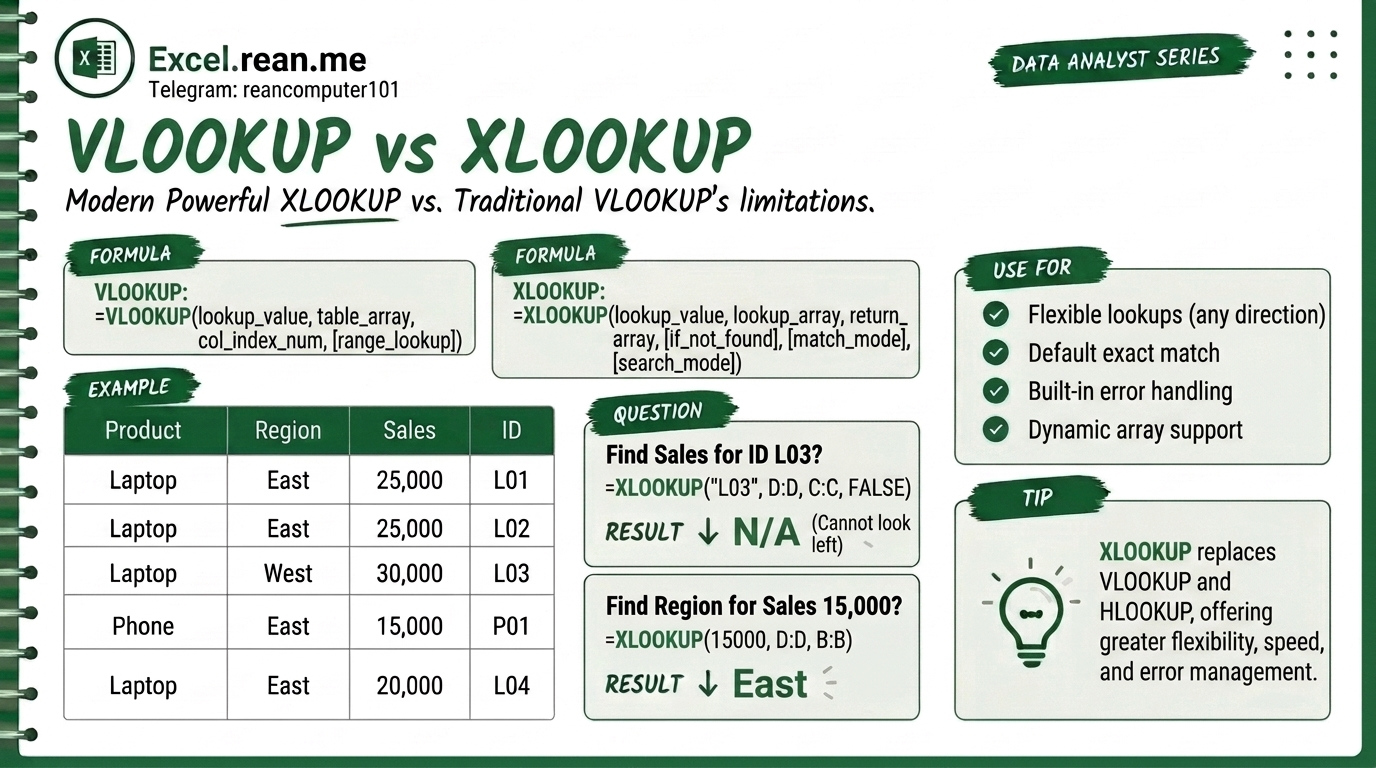
Both VLOOKUP and XLOOKUP help you search for data in one column and bring back matching information from another column.
- VLOOKUP: The classic formula (used in older and newer Excel versions).
- XLOOKUP: The modern, upgraded formula in Excel 365 and Excel 2021+.
📚 Related Tutorial: Want to learn another powerful lookup alternative? Check out How to Use INDEX and MATCH in Excel!
1. How VLOOKUP Works
VLOOKUP searches for a value in the first (leftmost) column of a table and returns a value from a column to the right.
Formula Syntax
=VLOOKUP(lookup_value, table_array, col_index_num, [range_lookup])
Simple Example
=VLOOKUP(A2, D:F, 3, FALSE)
This searches for the value in cell A2 inside column D, then returns the matching result from the 3rd column (column F). FALSE forces an exact match.
2. How XLOOKUP Works
XLOOKUP separates the lookup column and return column into two independent ranges.
Formula Syntax
=XLOOKUP(lookup_value, lookup_array, return_array, [if_not_found])
Simple Example
=XLOOKUP(A2, D:D, F:F, "Not Found")
This searches for A2 in column D and returns the result from column F. If not found, it displays "Not Found".
🎬 Khmer Video Tutorials
Example #1 VLOOKUP Function (Khmer)
Example #2 VLOOKUP Function (Khmer)
💡 Pro Tips: Why XLOOKUP Beats VLOOKUP
1. XLOOKUP Can Look Left ⬅️
VLOOKUP can only search left-to-right. If your search column is to the right of your result, VLOOKUP fails. XLOOKUP can search in any direction (left, right, up, or down).
2. Inserting Columns Doesn't Break XLOOKUP 🛡️
If you add or delete a column in your table, VLOOKUP often breaks because the hardcoded column index number (e.g. 3) is wrong. XLOOKUP uses dynamic column references (e.g. F:F), so it never breaks when columns move!
3. Automatic Exact Match 🎯
In VLOOKUP, if you forget to type , FALSE at the end, Excel defaults to approximate match, which causes hidden errors. XLOOKUP defaults to Exact Match automatically.
4. Built-in Error Handling (No More IFERROR) 🚫
Instead of writing =IFERROR(VLOOKUP(...), "Not Found"), XLOOKUP has built-in error handling via its 4th parameter:
=XLOOKUP(A2, D:D, F:F, "Not Found")
5. When Should You Still Use VLOOKUP? ⌛
Only use VLOOKUP if you are sharing spreadsheets with colleagues who use older versions of Excel (Excel 2016, 2013, or earlier) that do not support XLOOKUP.
📚 Related Tutorials
Related Tutorials
Opens in new tab ↗How to Use XLOOKUP Function in Excel (Multiple Examples)
Learn how to use XLOOKUP function in Excel step-by-step to lookup value in table or range with simple examples and video guide.
INT vs MOD Function in Excel: What is the Difference? (Easy Guide)
Learn the difference between INT and MOD functions in Excel. Very simple examples to help you understand whole numbers and remainders.
How to Use RATE Function in Excel (Find Hidden Interest)
Learn how to use RATE function in Excel to find out the real interest rate the bank is charging you. Very simple and easy!