How to Use RANK Function in Excel with Multiple Examples (Video in Khmer)
Learn how to use RANK function in Excel step-by-step with simple examples and Khmer video guides.
Hello everyone! Today I show you very easy step-by-step how to use RANK() function in Microsoft Excel with multiple real examples.
RANK function is very useful when you want to find the position of a number in a list. For example: rank students by score, rank products by sales, or rank employees by performance!
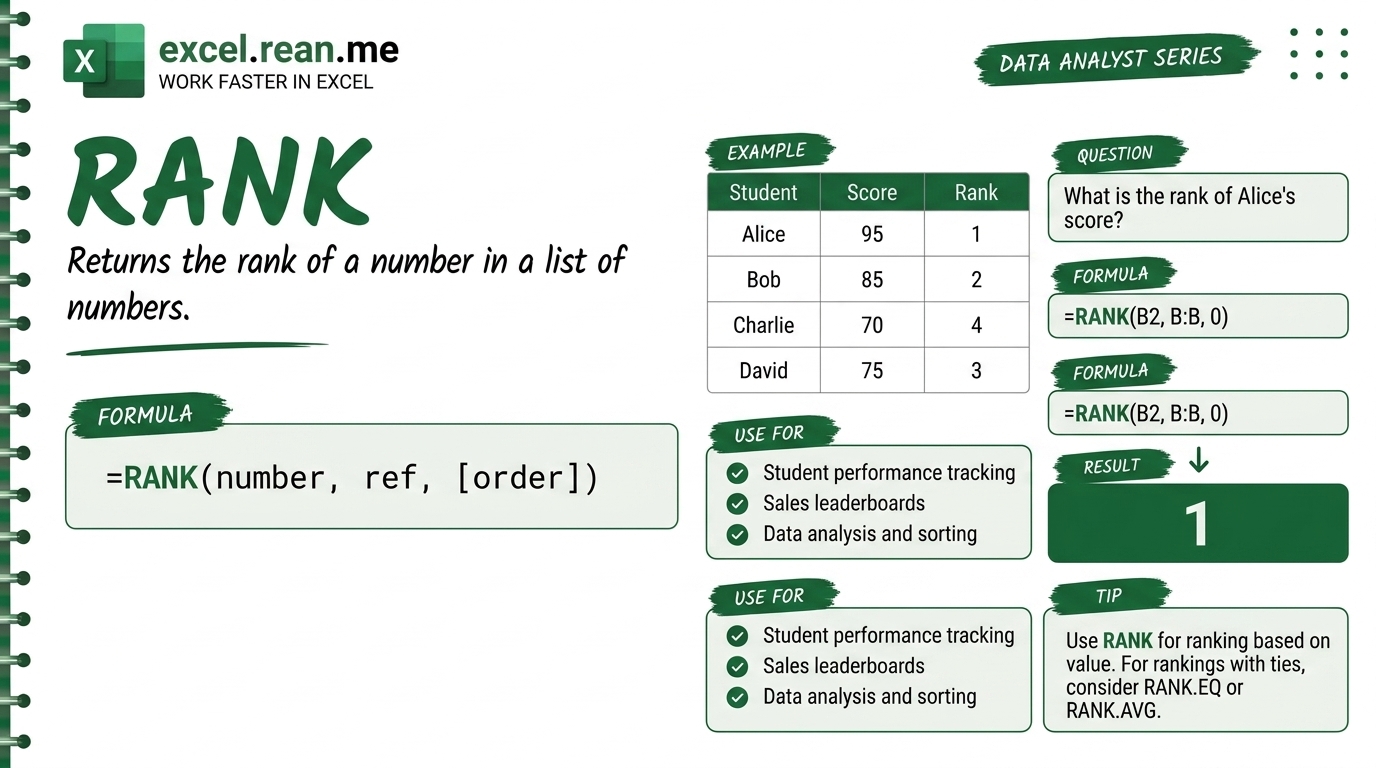
🛠️ How RANK Function Work?
The RANK function check a number and compare it with other numbers in a range. Then it return which position (rank number) that number is — like 1st place, 2nd place, 3rd place.
Formula Syntax:
=RANK(number, ref, [order])
| Parameter | Meaning |
|---|---|
number | The number you want to rank (example: cell A2) |
ref | The full list of numbers to compare (example: $A$2:$A$10) |
[order] | 0 = Largest number get rank 1 (default). 1 = Smallest number get rank 1. |
⚠️ Important: Always lock your
refrange with$signs like$A$2:$A$10so when you copy formula down, the range does not move!
📺 Example #1: Rank Score from Highest to Lowest (order = 0)
If column A has student scores and you want to rank from highest score = rank 1:
=RANK(A2, $A$2:$A$10, 0)
- Score
95→1(1st place, highest) - Score
75→3(3rd place) - Score
30→9(9th place, lowest)
📺 Example #2: Handle Scores with RANK
If two students both have score 75, RANK will give both of them the same rank number and skip the next rank:
| Student | Score | RANK Result |
|---|---|---|
| Dara | 95 | 1 |
| Sokha | 75 | 2 |
| Bopha | 75 | 2 (same score = same rank!) |
| Chann | 60 | 4 (rank 3 is skipped!) |
=RANK(B2, $B$2:$B$5, 0)
📺 Example #3: Rank from Smallest to Largest (order = 1)
If you want smallest number to get rank 1 (like ranking time in a race — fastest = rank 1):
=RANK(A2, $A$2:$A$10, 1)
- Time
10seconds →1(1st place, fastest) - Time
25seconds →4(4th place)
📚 Related Tutorial: Learn more foundational formulas in our guide on Top 15 Basic Excel Formulas for Beginners ↗!
💡 Easy Pro Tips for RANK Function
- Always Lock the Range with
$: Use$A$2:$A$10instead ofA2:A10so when you drag formula down, the list range stay fixed and not move! - Use RANK.EQ or RANK.AVG: In newer Excel versions,
RANKis same asRANK.EQ. If you want duplicates to get average rank instead of same rank, useRANK.AVG(). - Combine with IF for Medal:
=IF(RANK(A2,$A$2:$A$10,0)=1,"🥇 Gold", IF(RANK(A2,$A$2:$A$10,0)=2,"🥈 Silver","🥉 Bronze"))
Related Tutorials
Opens in new tab ↗How to Use RANK, RANK.EQ, and RANK.AVG Functions in Excel + Tips
Learn how to use RANK, RANK.EQ, and RANK.AVG functions in Excel step-by-step with simple examples, tie handling, tips, and video tutorials in Khmer.
How to Use XMATCH Function in Excel (Multiple Examples)
Learn how to use XMATCH function in Excel step-by-step to lookup value in table or range with simple examples and video guide.
How to Use CHOOSE Function in Excel + Tips (Video in Khmer)
Learn how to use CHOOSE function in Excel step-by-step to pick values by position number with simple examples, tips, and video tutorial in Khmer.