How to Change Text Case (UPPER, LOWER, PROPER) in Excel (video in khmer)
Learn how to change and convert text to UPPERCASE, lowercase, or Proper Case in Excel using UPPER, LOWER, and PROPER functions with simple examples.
Hello everyone! Today i will show you how to change and convert text to UPPERCASE, lowercase, or Proper Case in Excel step by step.
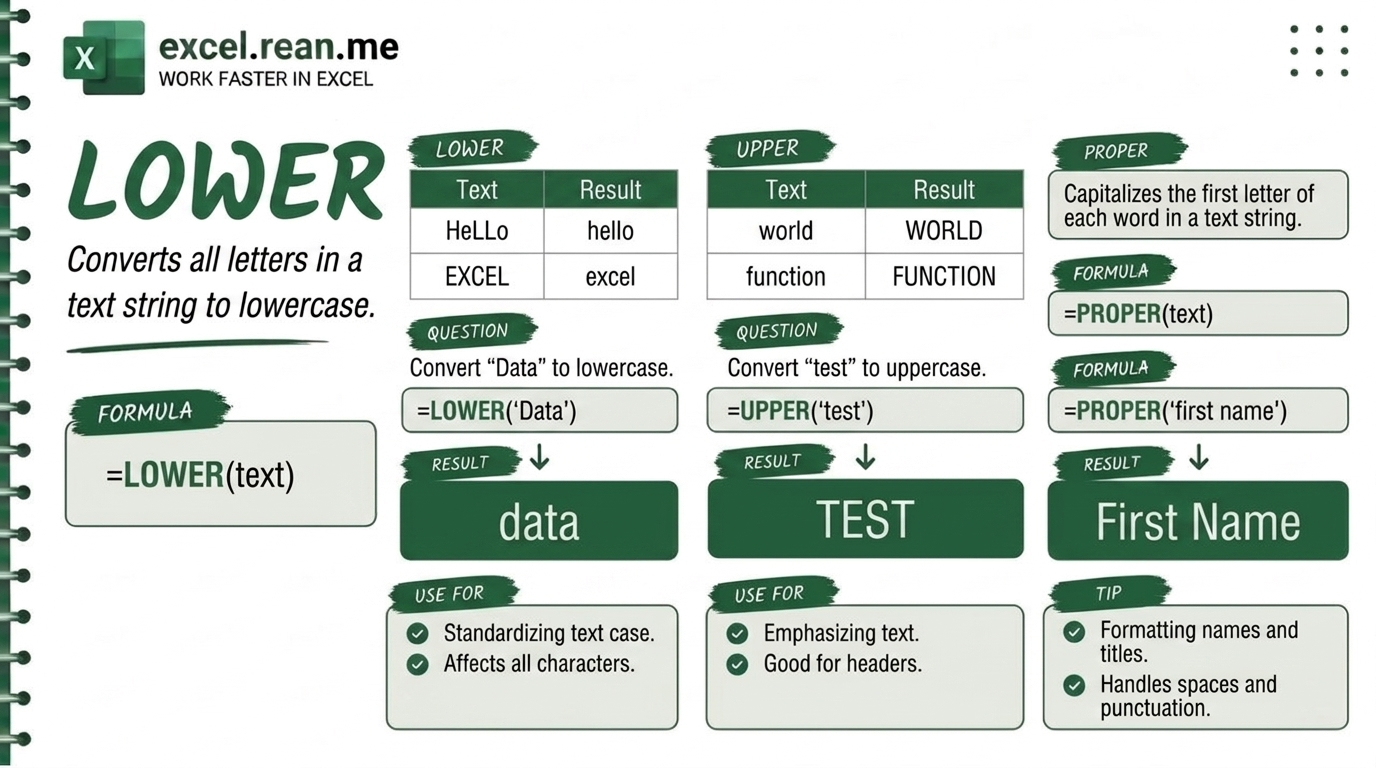
If you have list of names or text in Excel spreadsheet that look messy with mixed BIG and small letters, these 3 text formulas (UPPER, LOWER, PROPER) help you clean data very fast!
📚 Related Tutorial: Want to combine text together? Check out How to Connect Text Values in Excel!
🛠️ Formula Syntax & Meaning
=UPPER(text)➔ Change all letters to ALL CAPITAL LETTERS (UPPERCASE).=LOWER(text)➔ Change all letters to all small letters (lowercase).=PROPER(text)➔ Capitalize First Letter of Each Word (Proper Case).
📊 Simple Examples
If cell A2 contain text "rean computer 101":
1. Change to ALL UPPERCASE:
=UPPER(A2)
- Result:
REAN COMPUTER 101
2. Change to all lowercase:
=LOWER(A2)
- Result:
rean computer 101
3. Change to Proper Case:
=PROPER(A2)
- Result:
Rean Computer 101(first letter of each word become capital!)
💡 Pro Tips for Text Case Formulas
- Remove Extra Spaces First: Combine with
TRIM()formula to delete extra spaces between words:=PROPER(TRIM(A2)) - Join Names and Fix Capitalization: You can combine
PROPERwith&to join First Name (A2) and Last Name (B2):=PROPER(A2) & " " & PROPER(B2) - Keep Only Clean Text (Remove Formulas): After you convert text case, select new column ➔ copy (Ctrl + C) ➔ right-click ➔ Paste as Values (press
V) so formula go away and keep clean text!
📚 Related Tutorials
Related Tutorials
Opens in new tab ↗Top 20+ Basic Excel Formulas for Beginners (Video in Khmer)
Learn 20+ essential Excel formulas for beginners: SUM, MIN, MAX, AVERAGE, IF, RANK, COUNT, COUNTA, COUNTIF, SUMIF, VLOOKUP, CONCATENATE, TRIM, UPPER, LOWER, TODAY, NOW, MONTH, DAY, and YEAR with easy video guide.
How to Use XMATCH Function in Excel (Multiple Examples)
Learn how to use XMATCH function in Excel step-by-step to lookup value in table or range with simple examples and video guide.
How to Use CHOOSE Function in Excel + Tips (Video in Khmer)
Learn how to use CHOOSE function in Excel step-by-step to pick values by position number with simple examples, tips, and video tutorial in Khmer.