Essential Excel Keyboard Shortcuts Every User Should Know (Download Free)
Stop reaching for the mouse. Master these high-frequency Excel shortcuts to navigate, select, format, and edit data significantly faster.
Reaching for your mouse every time you want to select a column, insert a row, or format a number adds up to hours of wasted time over the course of a month. Learning even a dozen core Excel shortcuts can drastically boost your speed and efficiency.
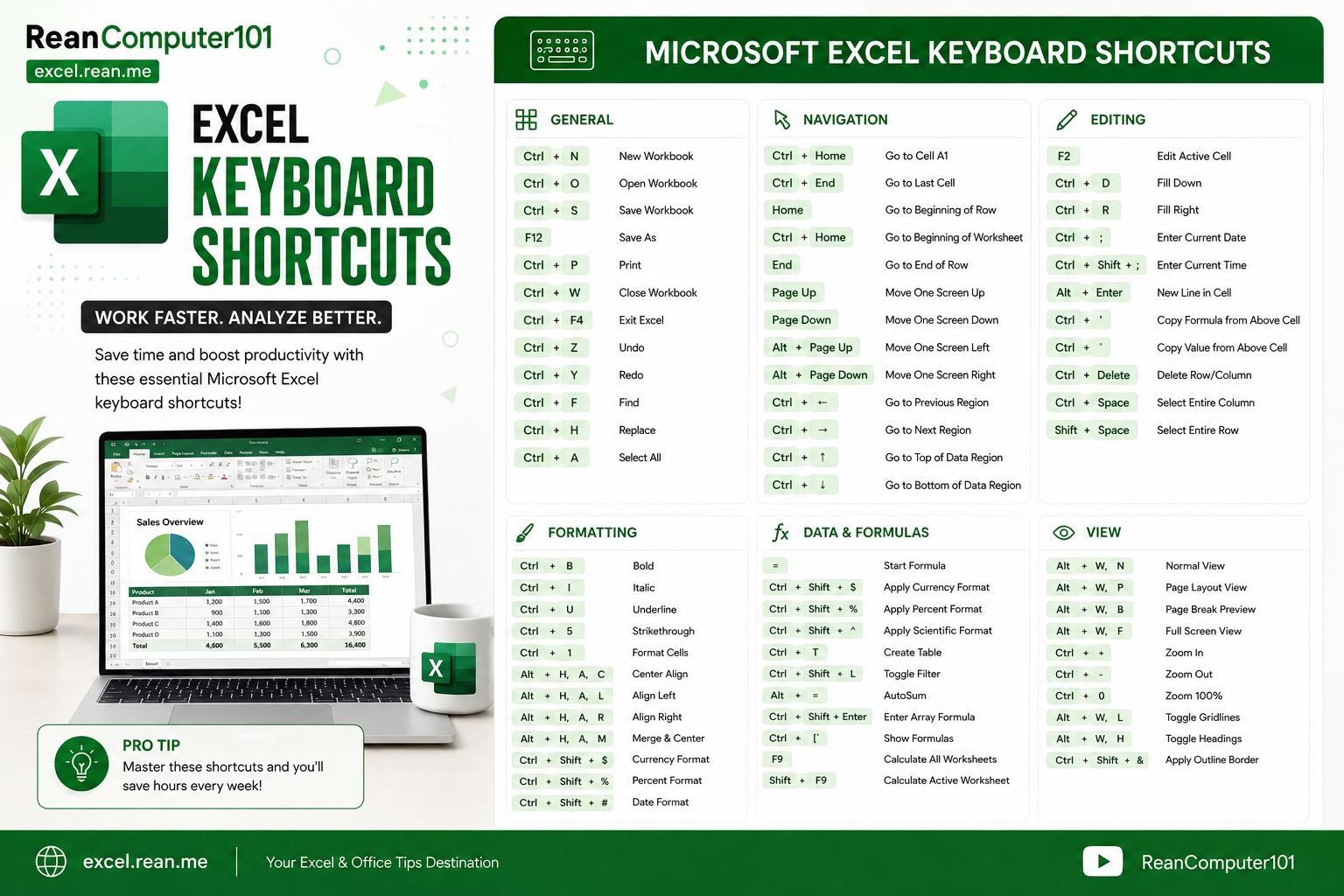 Download High Resolution Image at the end of the post.
Here is a breakdown of the most useful Excel shortcuts, grouped into tables by how you'll use them in your daily workflow.
1. Fast Navigation and Sheet Switching
Moving around large spreadsheets cell-by-cell with the arrow keys is slow. Combine Ctrl or Cmd with Shift and the arrow keys to jump and select instantly.
| Action | Windows Shortcut | Mac Shortcut |
|---|---|---|
| Jump to edge of data region | Ctrl + Arrow Key | Cmd + Arrow Key |
| Jump to cell A1 | Ctrl + Home | Cmd + Fn + Left Arrow |
| Jump to last used cell | Ctrl + End | Cmd + Fn + Right Arrow |
| Switch to next sheet | Ctrl + Page Down | Cmd + Page Down |
| Switch to previous sheet | Ctrl + Page Up | Cmd + Page Up |
| Go To Cell Dialog | F5 | F5 |
| Move One Screen Right / Left | Alt + Page Down / Page Up | Option + Page Down / Page Up |
Tip: If your dataset has 10,000 rows, click the header cell, press
Ctrl+Shift+Down Arrow(orCmd+Shift+Down Arrowon Mac), and you'll highlight the entire column in milliseconds.
2. Selection Shortcuts
Highlighting ranges, rows, and columns without dragging your mouse saves tremendous effort.
| Action | Windows Shortcut | Mac Shortcut |
|---|---|---|
| Select entire table / worksheet | Ctrl + A | Cmd + A |
| Select entire row | Shift + Space | Shift + Space |
| Select entire column | Ctrl + Space | Control + Space |
| Select visible cells only | Alt + ; | Cmd + Shift + Z |
| Select to edge of data region | Ctrl + Shift + Arrow Key | Cmd + Shift + Arrow Key |
| Select current region | Ctrl + Shift + * | Cmd + Shift + * |
| Extend selection to Cell A1 | Ctrl + Shift + Home | Cmd + Shift + Fn + Left Arrow |
| Extend selection to last cell | Ctrl + Shift + End | Cmd + Shift + Fn + Right Arrow |
3. Row and Column Management
Inserting, deleting, hiding, or grouping rows and columns is one of the most common tasks in spreadsheet design.
| Action | Windows Shortcut | Mac Shortcut |
|---|---|---|
| Insert row / column | Ctrl + Shift + + | Cmd + Shift + + |
| Delete row / column | Ctrl + - | Cmd + - |
| Hide selected row(s) | Ctrl + 9 | Cmd + 9 |
| Unhide selected row(s) | Ctrl + Shift + ( | Cmd + Shift + ( |
| Hide selected column(s) | Ctrl + 0 | Cmd + 0 |
| Unhide selected column(s) | Ctrl + Shift + ) | Cmd + Shift + ) |
| Group rows / columns | Shift + Alt + Right Arrow | Cmd + Shift + K |
| Ungroup rows / columns | Shift + Alt + Left Arrow | Cmd + Shift + J |
4. Data Entry and Editing
Speed up repetitive typing, cell editing, and pattern filling with these power actions:
| Action | Windows Shortcut | Mac Shortcut |
|---|---|---|
| Flash Fill pattern | Ctrl + E | Cmd + E |
| Edit active cell | F2 | Ctrl + U |
| Fill down from cell above | Ctrl + D | Cmd + D |
| Fill right from cell to left | Ctrl + R | Cmd + R |
| Fill selected range with active entry | Ctrl + Enter | Cmd + Return |
| Insert current system date | Ctrl + ; | Cmd + ; |
| Insert current system time | Ctrl + Shift + ; | Cmd + Shift + ; |
| Undo last action | Ctrl + Z | Cmd + Z |
| Redo / Repeat last action | Ctrl + Y | Cmd + Y |
| Find in sheet | Ctrl + F | Cmd + F |
| Replace in sheet | Ctrl + H | Cmd + H |
| Paste Special dialog | Ctrl + Alt + V | Cmd + Option + V |
| Insert cell note / comment | Shift + F2 | Shift + F2 |
| Spell check worksheet | F7 | F7 |
5. Formulas and Calculations
Formulas become much faster to construct when you don't have to manually type dollar signs $A$1 or click the AutoSum button on the ribbon.
| Action | Windows Shortcut | Mac Shortcut |
|---|---|---|
| AutoSum adjacent cells | Alt + = | Cmd + Shift + T |
Toggle reference type (A1 → $A$1) | F4 | Cmd + T |
| Toggle show formulas vs values | Ctrl + ` | Ctrl + ` |
| Open Name Manager | Ctrl + F3 | Cmd + F3 |
| Calculate active sheet only | Shift + F9 | Shift + F9 |
| Calculate entire workbook | F9 | F9 |
| Insert Function Dialog | Shift + F3 | Shift + F3 |
6. Instant Formatting
Instead of navigating the ribbon dropdown menus, apply common styling and number formats instantly:
| Format | Windows Shortcut | Mac Shortcut |
|---|---|---|
| Format Cells Dialog | Ctrl + 1 | Cmd + 1 |
Currency Format ($1,234.56) | Ctrl + Shift + $ | Ctrl + Shift + $ |
Percentage Format (50%) | Ctrl + Shift + % | Ctrl + Shift + % |
| General Number Format | Ctrl + Shift + ~ | Ctrl + Shift + ~ |
Date Format (DD-MMM-YY) | Ctrl + Shift + # | Ctrl + Shift + # |
| Time Format | Ctrl + Shift + @ | Ctrl + Shift + @ |
| Bold Styling | Ctrl + B | Cmd + B |
| Italic Styling | Ctrl + I | Cmd + I |
| Underline Styling | Ctrl + U | Cmd + U |
| Add Outline Border | Ctrl + Shift + & | Cmd + Option + 0 |
| Remove All Borders | Ctrl + Shift + _ | Cmd + Option + _ |
| Strikethrough Formatting | Ctrl + 5 | Cmd + Shift + X |
7. Workbook and Sheet Controls
Manage tables, filters, charts, and file saving effortlessly:
| Action | Windows Shortcut | Mac Shortcut |
|---|---|---|
| Create Official Excel Table | Ctrl + T | Cmd + T |
| Toggle AutoFilter arrows | Ctrl + Shift + L | Cmd + Shift + F |
| Minimize / Expand Excel Ribbon | Ctrl + F1 | Cmd + Option + R |
| Save Workbook | Ctrl + S | Cmd + S |
| Save As Dialog | F12 | Cmd + Shift + S |
| Open New Workbook | Ctrl + N | Cmd + N |
| Insert New Worksheet | Shift + F11 | Shift + F11 |
| Create Chart in New Sheet | F11 | F11 |
| Create Embedded Chart | Alt + F1 | Option + F1 |
Quick Reference Master Table
| Category | Action | Windows Shortcut | Mac Shortcut |
|---|---|---|---|
| Navigation | Jump to Edge | Ctrl + Arrow | Cmd + Arrow |
| Selection | Select Table | Ctrl + A | Cmd + A |
| Rows/Cols | Insert Row/Col | Ctrl + Shift + + | Cmd + Shift + + |
| Rows/Cols | Delete Row/Col | Ctrl + - | Cmd + - |
| Editing | Flash Fill | Ctrl + E | Cmd + E |
| Editing | Edit Active Cell | F2 | Ctrl + U |
| Editing | Fill Down | Ctrl + D | Cmd + D |
| Formulas | AutoSum | Alt + = | Cmd + Shift + T |
| Formulas | Toggle $A$1 | F4 | Cmd + T |
| Formatting | Format Cells | Ctrl + 1 | Cmd + 1 |
| Formatting | Currency Format | Ctrl + Shift + $ | Ctrl + Shift + $ |
| Workbook | Toggle Filter | Ctrl + Shift + L | Cmd + Shift + F |
Download Excel Keyboard Shortcuts
👉 📥 Download High Resolution Image
Next Steps
Don't try to memorize all of these at once. Pick 2 or 3 shortcuts (like Ctrl + E for Flash Fill, Ctrl + D for Fill Down, and Alt + = for AutoSum), use them for a day until they become muscle memory, and then add a few more to your daily routine.
📚 Useful Resources
- Top Microsoft Excel Tips and Tricks Every Spreadsheet User Should Know
- Top 15 Basic Excel Formulas for Beginners
- Essential Microsoft Word Keyboard Shortcuts Every User Should Know
- Essential Microsoft PowerPoint Keyboard Shortcuts Every Presenter Should Know
- How to Print Documents in Word, Excel, and PowerPoint
- Free Download PDF - 50 Popular Excel Formulas Cheatsheet (Khmer Language)
Related Tutorials
Opens in new tab ↗Top Microsoft Excel Tips and Tricks Every Spreadsheet User Should Know (Download Free)
Transform the way you work in Excel. Learn powerful time-saving tips and tricks including Flash Fill, Quick Analysis, Transpose, dynamic drop-down lists, AutoSum hacks, and the hidden Camera tool.
Top Microsoft Word Tips and Tricks Every Document Creator Should Know (Download Free)
Master Microsoft Word with these essential productivity tips and tricks, including Spike cut-and-paste, random text generation, instant horizontal lines, Quick Parts, vertical box selection, and PDF editing.
Top Microsoft PowerPoint Tips and Tricks Every Presenter Should Know (Download Free)
Transform your PowerPoint presentations. Discover game-changing tips and tricks including Morph transitions, SmartArt text conversions, Eyedropper color matching, Slide Master, background removal, and live presenter tricks.