How to Use ABS and PRODUCT Functions in Excel (Video in Khmer)
Learn how to use ABS and PRODUCT functions in Excel step-by-step with simple examples and Khmer video guides.
Hello everyone! Today I show you two very useful functions in Microsoft Excel: ABS() and PRODUCT(). These two formulas help you calculate absolute value and multiply numbers very easily!
📚 Related Tutorial: Learn more foundational formulas in our guide on Top 15 Basic Excel Formulas for Beginners ↗!
🛠️ Part 1: ABS Function — Get Absolute Value (Remove Negative Sign)
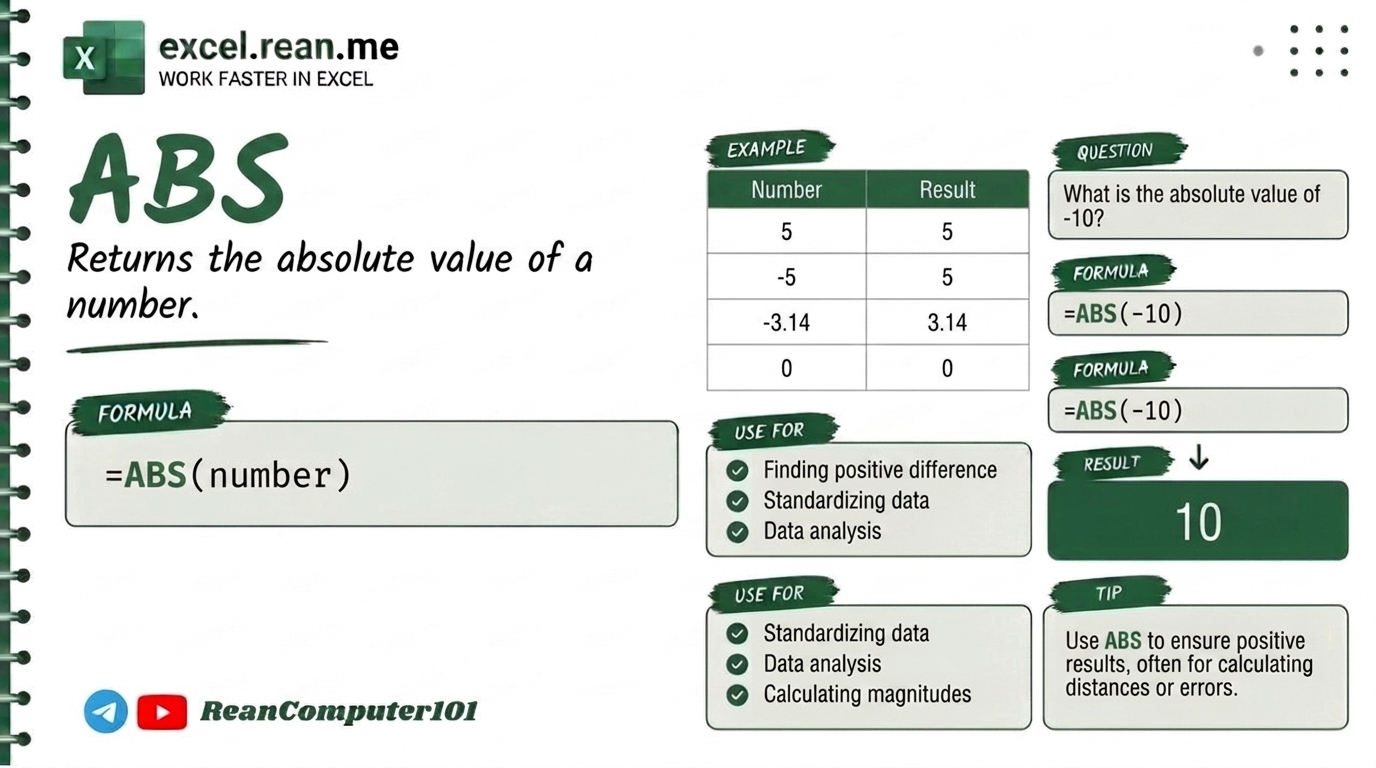
The ABS function removes the negative sign from a number. It always return positive number. "ABS" stand for Absolute.
For example, if you have -500 (negative 500), ABS will give you 500 (positive 500). Very useful for calculating differences, losses, or errors!
Formula Syntax:
=ABS(number)
Simple Examples:
| Formula | Result | Why? |
|---|---|---|
=ABS(-5) | 5 | Negative becomes positive |
=ABS(10) | 10 | Already positive, no change |
=ABS(-15) | 15 | Negative becomes positive |
=ABS(-500) | 500 | Good for showing loss as positive |
Real World Example (Profit/Loss):
If cell B2 has profit/loss amount like -2500 (loss of $2,500):
=ABS(B2)
- Result:
2500(show how much loss without negative sign)
🛠️ Part 2: PRODUCT Function — Multiply Numbers Together
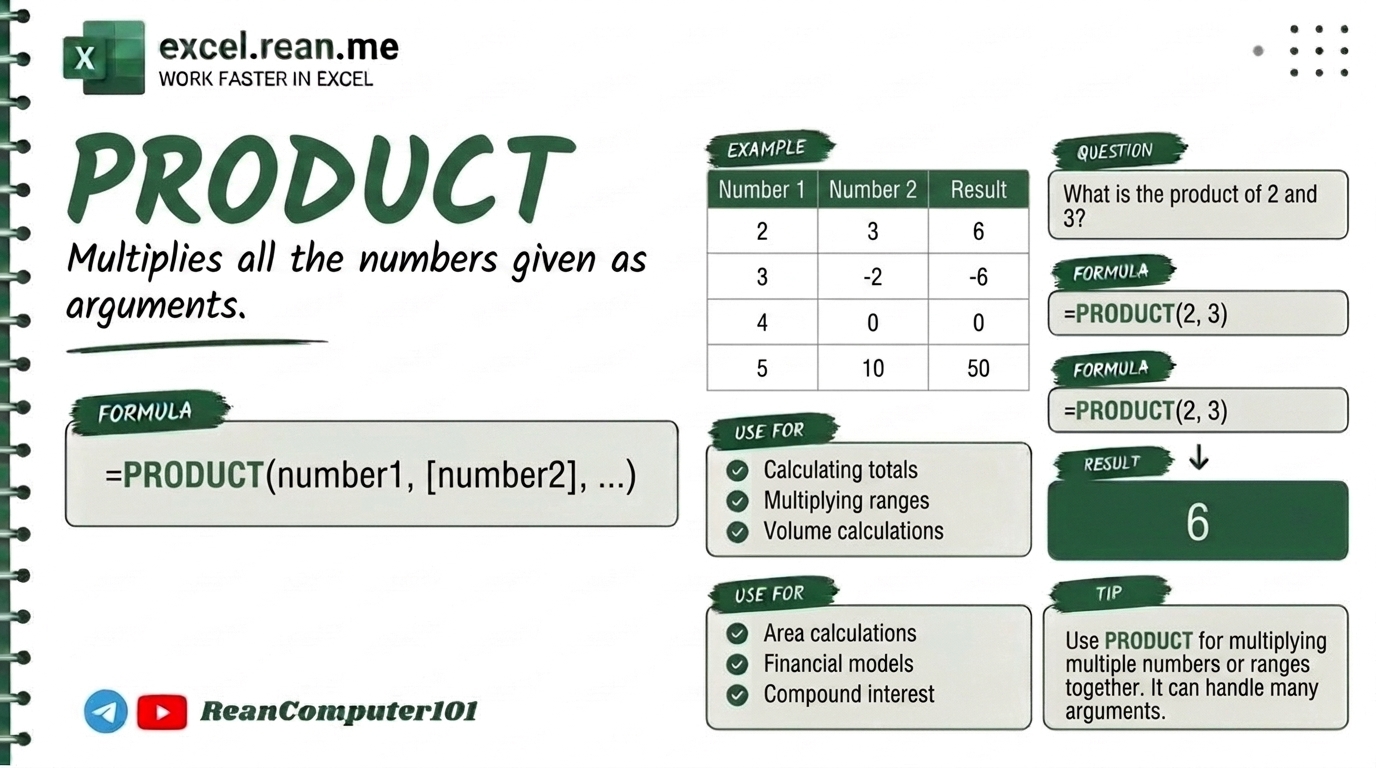
The PRODUCT function multiply all numbers you give it together. It is easier than typing * many times, especially when you multiply a range of numbers!
Formula Syntax:
=PRODUCT(number1, [number2], ...)
Or multiply a range of cells:
=PRODUCT(A1:A5)
Simple Examples:
| Formula | Result | Math Behind It |
|---|---|---|
=PRODUCT(2, 3, 4) | 24 | 2 × 3 × 4 = 24 |
=PRODUCT(5, 6, 7) | 210 | 5 × 6 × 7 = 210 |
=PRODUCT(10, 2) | 20 | 10 × 2 = 20 |
Real World Example (Total Price):
If you have Quantity 5, Unit Price 120, and Discount rate 90%:
=PRODUCT(B2, C2, D2)
5 × 120 × 0.9 = 540- Result:
540(total price after discount)
💡 Easy Pro Tips
- ABS for Difference Between Two Values: Want to find gap between two numbers without caring which is bigger?
Result is always positive, never negative!=ABS(A2 - B2) - PRODUCT vs Multiply
*: Both give same result, butPRODUCTis cleaner when multiply many cells:=PRODUCT(A1:A10)is much easier than=A1*A2*A3*A4*A5*A6*A7*A8*A9*A10! - PRODUCT ignores blank cells and text: If some cells in range are blank or have text,
PRODUCTwill skip them automatically.
Related Tutorials
Opens in new tab ↗How to Use XMATCH Function in Excel (Multiple Examples)
Learn how to use XMATCH function in Excel step-by-step to lookup value in table or range with simple examples and video guide.
How to Use CHOOSE Function in Excel + Tips (Video in Khmer)
Learn how to use CHOOSE function in Excel step-by-step to pick values by position number with simple examples, tips, and video tutorial in Khmer.
How to Use AVERAGEIF Function in Excel + Tips (Video in Khmer)
Learn how to use AVERAGEIF function in Excel step-by-step to calculate average of numbers based on one condition with simple examples, tips, and video tutorial in Khmer.