How to Use Text Cleaning Formulas in Excel (LEFT, RIGHT, MID, LEN, FIND, SEARCH, TRIM, CLEAN) + Video in Khmer
Master top text cleaning formulas in Excel: LEFT, RIGHT, MID, LEN, FIND, SEARCH, TRIM, and CLEAN with Khmer video tutorials and practical examples.
Hello everyone! Today i will show you how to use top text formulas in Microsoft Excel to clean and extract data step by step.
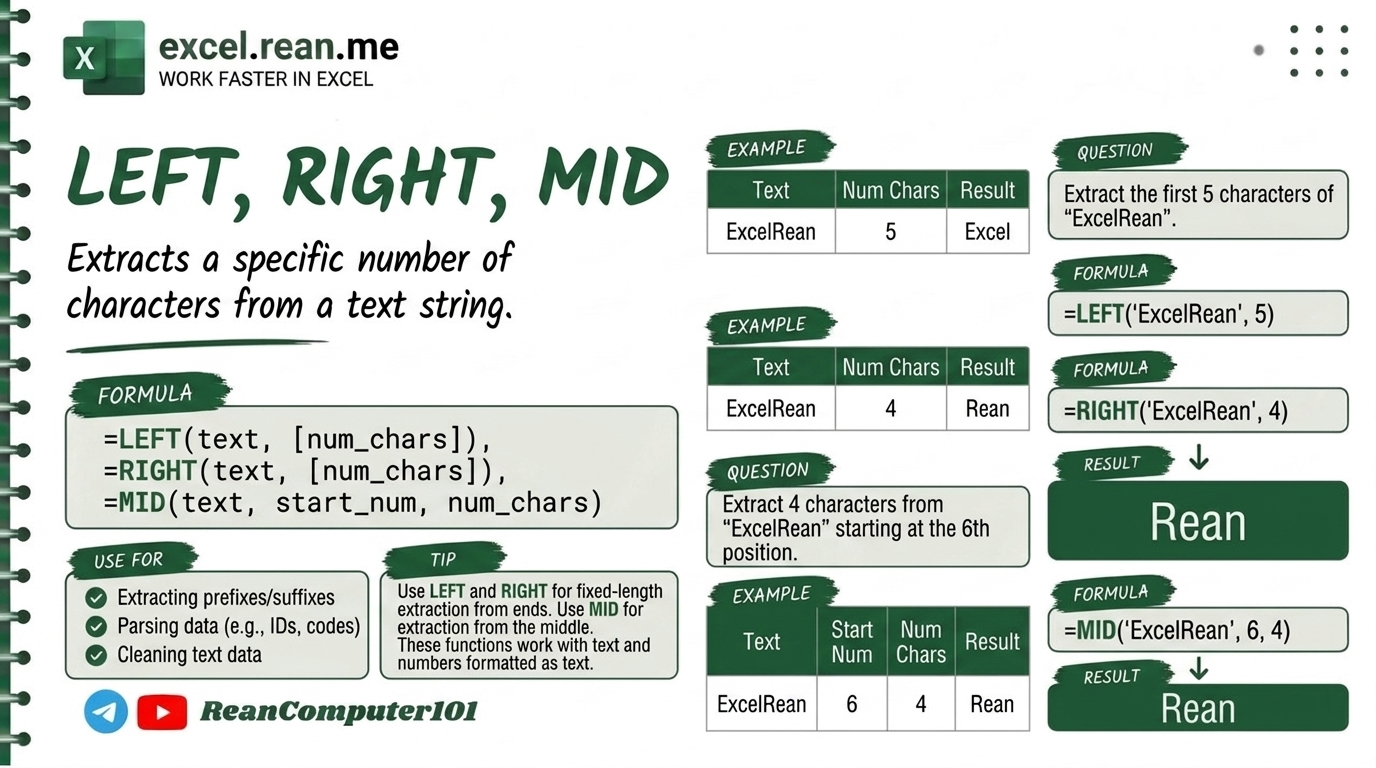
When you copy data from website or export report from accounting software, text often have extra spaces, non-printable characters, or combined names and codes. These 8 text formulas (LEFT, RIGHT, MID, LEN, FIND, SEARCH, TRIM, CLEAN) help you clean data very fast and professional!
📚 Related Tutorial: Want to convert text case? Check out How to Change Text Case (UPPER, LOWER, PROPER) in Excel!
🛠️ 1. LEFT Formula in Excel
The LEFT formula extract characters from beginning (left side) of text.
Syntax:
=LEFT(text, [num_chars])
Example:
If cell A2 contain text "Hello World":
=LEFT(A2, 5)
- Result:
Hello
🛠️ 2. RIGHT Formula in Excel
The RIGHT formula extract characters from end (right side) of text.
Syntax:
=RIGHT(text, [num_chars])
Example:
If cell A2 contain text "Hello World":
=RIGHT(A2, 5)
- Result:
World
🛠️ 3. MID Formula in Excel
The MID formula extract characters from middle of text starting from specific position.
Syntax:
=MID(text, start_num, num_chars)
Example:
If cell A2 contain text "Hello World":
=MID(A2, 7, 5)
- Result:
World(start position 7, get 5 characters)
🛠️ 4. LEN Formula in Excel
The LEN formula count total number of characters (letters, numbers, spaces) inside cell.
Syntax:
=LEN(text)
Example:
If cell A2 contain text "Hello World":
=LEN(A2)
- Result:
11
🛠️ 5. FIND Formula in Excel
The FIND formula returns starting position of text string inside another text (Case-Sensitive).
Syntax:
=FIND(find_text, within_text, [start_num])
Example:
If cell A2 contain text "Rean Computer":
=FIND("Computer", A2)
- Result:
6(word "Computer" starts at 6th character)
🛠️ 6. SEARCH Formula in Excel
The SEARCH formula finds position of text string inside another text (NOT Case-Sensitive).
Syntax:
=SEARCH(find_text, within_text, [start_num])
Example:
If cell A2 contain text "Rean Computer":
=SEARCH("computer", A2)
- Result:
6(matches small letter "computer" too!)
🛠️ 7. TRIM Formula in Excel
The TRIM formula remove extra space from text (keep only single space between words).
Syntax:
=TRIM(text)
Example:
If cell A2 contain text " Hello World ":
=TRIM(A2)
- Result:
Hello World
🛠️ 8. CLEAN Formula in Excel
The CLEAN formula remove non-printable characters (like line breaks Alt + Enter or invisible codes ASCII 0-31).
Syntax:
=CLEAN(text)
Example:
If cell A2 contain text with line break:
=CLEAN(A2)
- Result: Clean text on single line!
🛠️ 9. Combine TRIM + CLEAN Formula
To clean text 100% from extra spaces AND non-printable characters, combine TRIM and CLEAN:
=TRIM(CLEAN(A2))
Example Video Split Name (Latin Names) in Excel with Left, Right, Mid, Len and Find formula
💡 Pro Tips for Text Formulas
- TRIM + CLEAN Combination: Always use
=TRIM(CLEAN(A2))when importing raw text data from web or accounting software to remove all invisible line breaks and spaces. - FIND vs SEARCH Difference:
FINDis Case-Sensitive ("A"is different from"a").SEARCHis Not Case-Sensitive ("A"is same as"a") and supports wildcard symbols*and?.
- Extract First Name Dynamic: Combine
LEFTandSEARCHto get first name regardless of length:=LEFT(A2, SEARCH(" ", A2) - 1) - Copy as Values: After cleaning text, copy new column ➔ Paste as Values (
Ctrl + Alt + V➔V) to remove formulas.
📚 Useful Resources
Related Tutorials
Opens in new tab ↗How to Split Phone Number with Formula in Excel (Khmer)
Learn how to split two phone numbers in one cell into two separate columns in Excel step by step using LEFT, MID, FIND, LEN, and IF formulas with Khmer video guide.
Top 20+ Basic Excel Formulas for Beginners (Video in Khmer)
Learn 20+ essential Excel formulas for beginners: SUM, MIN, MAX, AVERAGE, IF, RANK, COUNT, COUNTA, COUNTIF, SUMIF, VLOOKUP, CONCATENATE, TRIM, UPPER, LOWER, TODAY, NOW, MONTH, DAY, and YEAR with easy video guide.
EXACT vs SEARCH vs FIND Function in Excel (Video in Khmer)
Learn how to compare text and find text position using EXACT, SEARCH, and FIND functions in Excel step by step with simple examples, tips, and video speak Khmer.