How to Use Min and Max in Excel: Simple Guide with Video in Khmer
Learn how to use MIN and MAX together in Excel. Easy step-by-step tutorial.
In this tutorial, we will explore the MIN() and MAX() functions in Microsoft Excel and follow this video to learn. In this video I use the Khmer language.
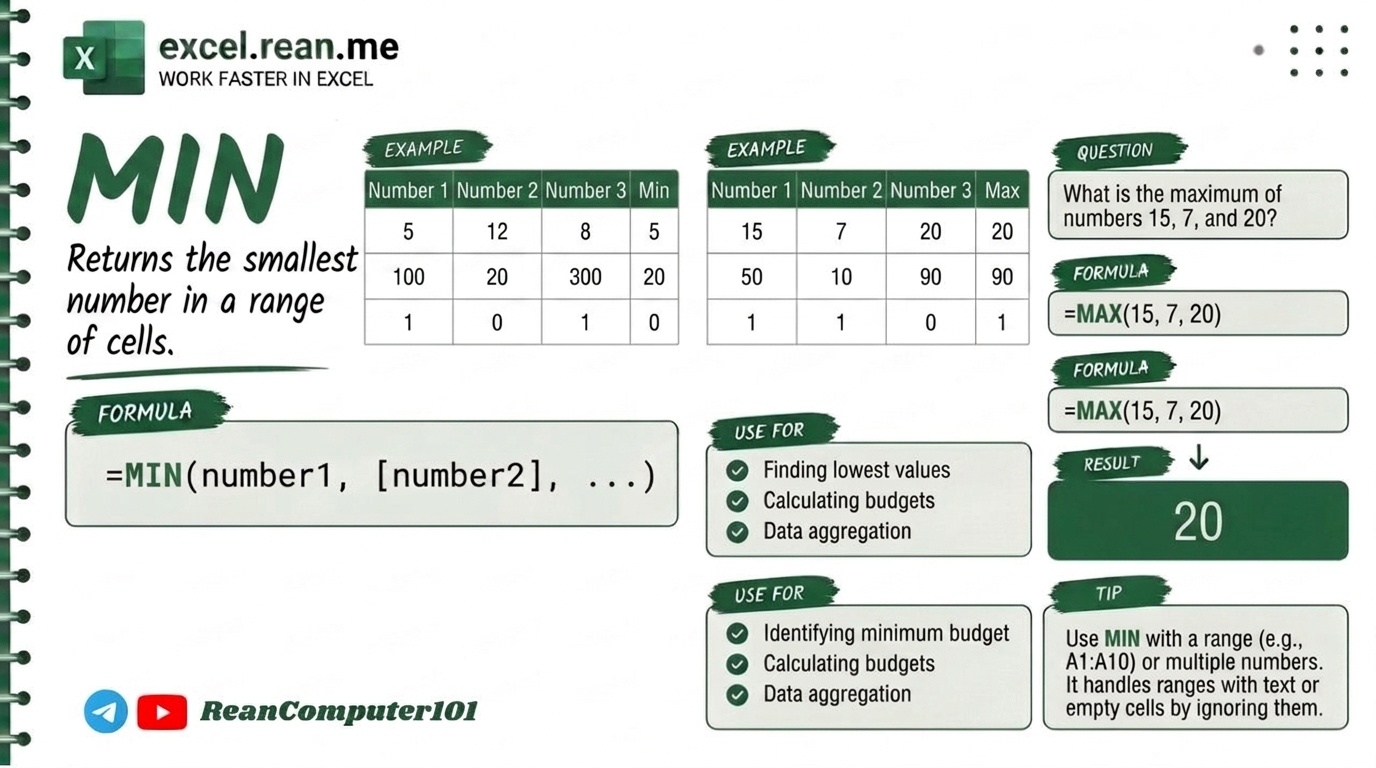
The MIN() Function
The MIN() function returns the minimum value in a range of cells.
Syntax:
=MIN(number1, [number2], ...)

Parameters:
    number1: Required. The first number or range to evaluate.
    [number2]: Optional. The second number or range to evaluate.
=MIN(start_cell:end_cell)

Parameters:
    start_cell: Required. The first cell in the range to evaluate.
    end_cell: Optional. The last cell in the range to evaluate.
Example:
If you enter =MIN(A1:A5) in a cell, it will display the minimum value in the range A1:A5.
The MAX() Function
The MAX() function returns the maximum value in a range of cells.
Syntax:
=MAX(number1, [number2], ...)

Parameters:
    number1: Required. The first number or range to evaluate.
    [number2]: Optional. The second number or range to evaluate.
=MAX(start_cell:end_cell)

Parameters:
    start_cell: Required. The first cell in the range to evaluate.
    end_cell: Optional. The last cell in the range to evaluate.
Example:
If you enter =MAX(A1:A5) in a cell, it will display the maximum value in the range A1:A5.
MIN() & MAX() Video Tutorial (Khmer)
📚 Related Tutorial: Learn more foundational formulas in our guide on Top 15 Basic Excel Formulas for Beginners ↗!
💡 Quick Tips for Using MIN() and MAX()
- Calculations: You can use these functions in calculations. For example,
=MAX(A1:A5) - MIN(A1:A5)will calculate the difference between the maximum and minimum values in the range A1:A5.
Related Tutorials
Opens in new tab ↗How to use MIN vs MAX and SMALL vs LARGE Functions in Excel (Video in Khmer)
Learn how to use MIN, MAX, SMALL, and LARGE functions in Excel step-by-step with simple examples and formula breakdowns.
Top 15 Basic Excel Formulas for Beginners (Khmer Video + Free Practice File)
Learn 15 essential Excel formulas: SUM, MIN, MAX, AVERAGE, IF, RANK, COUNT, COUNTA, COUNTIF, VLOOKUP, CONCATENATE, TRIM, UPPER, LOWER, and TODAY with easy video tutorial and practice file.
Top 20+ Basic Excel Formulas for Beginners (Video in Khmer)
Learn 20+ essential Excel formulas for beginners: SUM, MIN, MAX, AVERAGE, IF, RANK, COUNT, COUNTA, COUNTIF, SUMIF, VLOOKUP, CONCATENATE, TRIM, UPPER, LOWER, TODAY, NOW, MONTH, DAY, and YEAR with easy video guide.