How to Use RAND and RANDBETWEEN Functions in Excel (Video in Khmer)
Learn how to use RAND and RANDBETWEEN functions in Excel step-by-step with simple examples and Khmer video guides.
Hello everyone! Today I show you two very useful functions in Microsoft Excel: RAND() and RANDBETWEEN(). These two formulas help you generate random numbers very easily!
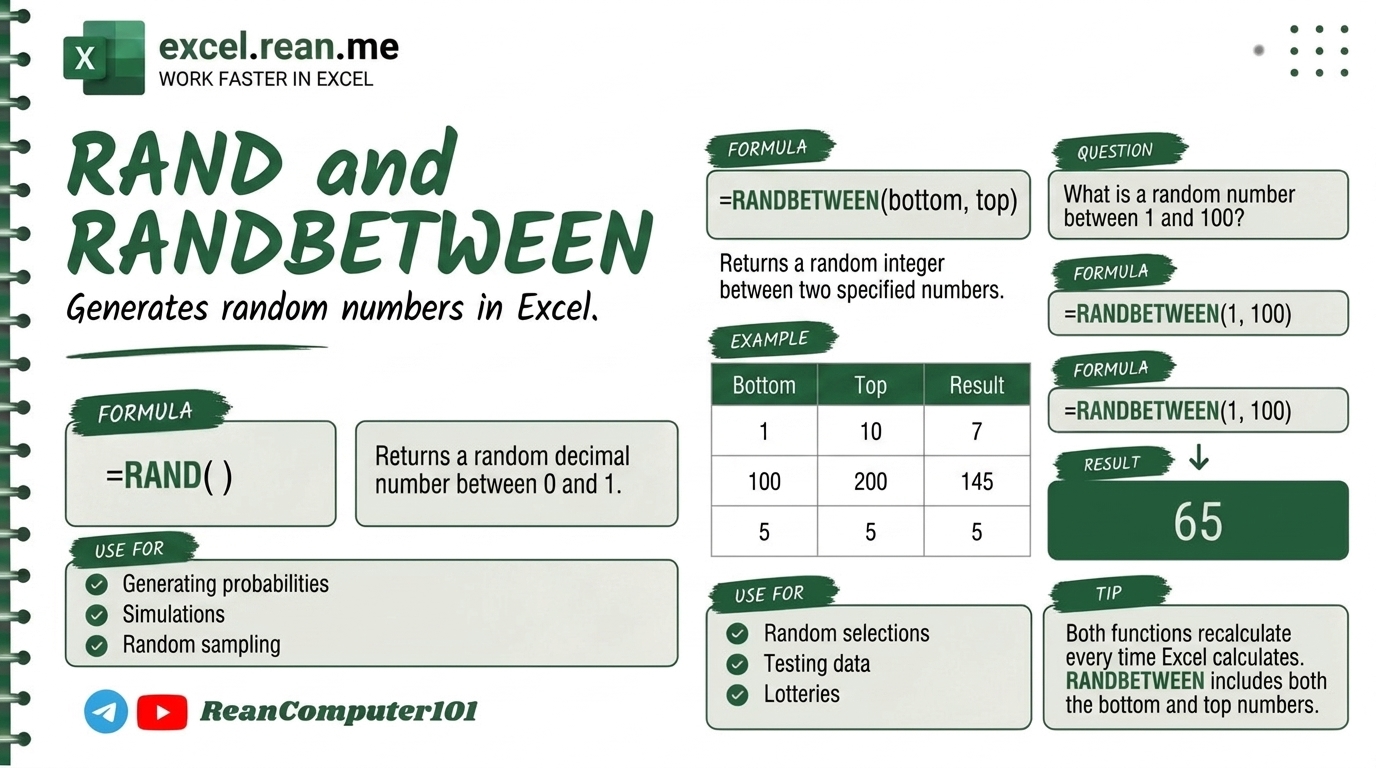
If you want to create lottery numbers, random student IDs, random test data, or random prices for practice — these two formulas are perfect for you! And follow this video to learn. In this video I use the Khmer language.
📚 Related Tutorial: Learn more foundational formulas in our guide on Top 15 Basic Excel Formulas for Beginners ↗!
📊 Quick Comparison: RAND vs RANDBETWEEN
| Function | What It Returns | Best Used For |
|---|---|---|
RAND() | Decimal number between 0 and 1 (example: 0.4523) | Random percentage, probability simulation |
RANDBETWEEN() | Whole number between two values you choose | Random scores, random IDs, lottery numbers |
🛠️ Part 1: RAND Function — Random Decimal Between 0 and 1
The RAND function give you a random decimal number that is always between 0 and 1. Every time you press F9 or change anything in worksheet, the number change automatically!
Formula Syntax:
=RAND()
- No parameter needed — just type
=RAND()and press Enter!
Simple Example:
=RAND()
- Result: Something like
0.4523or0.8871— different every time you recalculate!
Real World Example:
If you want random probability (0% to 100%):
=RAND() * 100
- Result: Random number like
45.23(represents 45.23%)
🛠️ Part 2: RANDBETWEEN Function — Random Whole Number in a Range
The RANDBETWEEN function give you a random whole number (integer) between two numbers you choose. Much more useful when you want specific range like 1 to 100!
Formula Syntax:
=RANDBETWEEN(bottom, top)
| Parameter | Meaning |
|---|---|
bottom | The smallest number you want (example: 1) |
top | The biggest number you want (example: 100) |
Simple Examples:
| Formula | Result | Use Case |
|---|---|---|
=RANDBETWEEN(1, 10) | 7 (any number 1-10) | Random dice roll |
=RANDBETWEEN(1, 100) | 63 (any number 1-100) | Random student score |
=RANDBETWEEN(1000, 9999) | 4521 (any 4-digit number) | Random ID or PIN |
💡 Easy Pro Tips for RAND and RANDBETWEEN
- Stop Number from Changing: Both
RANDandRANDBETWEENrecalculate every time worksheet changes. If you want to freeze the number, copy the cell → Paste Special → Values Only (paste as static number). - Generate Random Date: Use
RANDBETWEENwithDATE()to create random dates:
Then format cell as Date format to see the random date!=RANDBETWEEN(DATE(2026,1,1), DATE(2026,12,31)) - Random Pick from List: If you have a list of names in
A1:A10and want to pick one randomly:=INDEX(A1:A10, RANDBETWEEN(1, 10))
Related Tutorials
Opens in new tab ↗How to Use XMATCH Function in Excel (Multiple Examples)
Learn how to use XMATCH function in Excel step-by-step to lookup value in table or range with simple examples and video guide.
How to Use CHOOSE Function in Excel + Tips (Video in Khmer)
Learn how to use CHOOSE function in Excel step-by-step to pick values by position number with simple examples, tips, and video tutorial in Khmer.
How to Use AVERAGEIF Function in Excel + Tips (Video in Khmer)
Learn how to use AVERAGEIF function in Excel step-by-step to calculate average of numbers based on one condition with simple examples, tips, and video tutorial in Khmer.