How to Use T Formula in Excel (Video in Khmer)
Learn how to use T function in Excel step-by-step. Easy tutorial with video guides and useful tips.
Hello everyone! Today i will show you how to use T formula in Microsoft Excel.
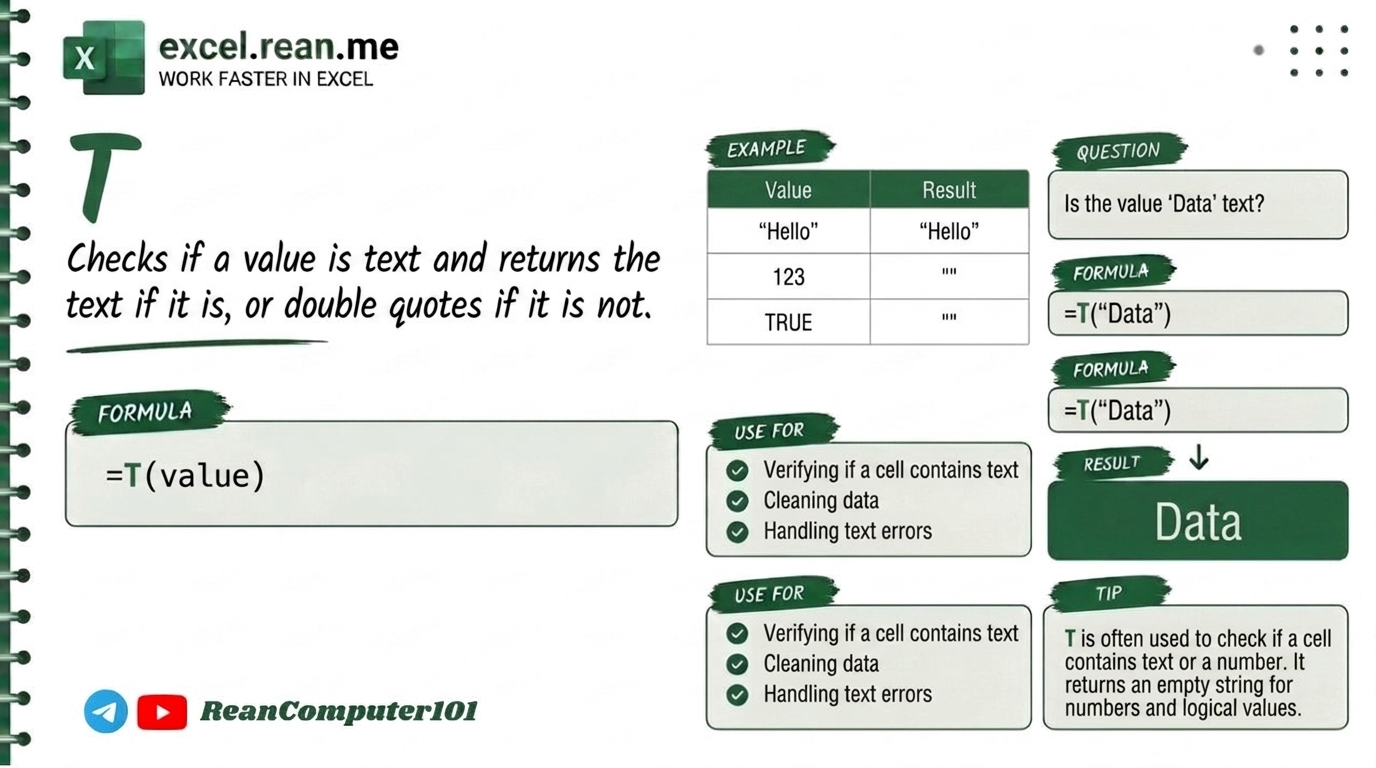
T formula is one of the simplest Excel functions. Its job is very straightforward: return text if the cell contains text, otherwise return empty string "".
🛠️ Formula Syntax & How It Works
=T(value)
value: The cell or value you want to check. It can be a number, date, text, error, or empty cell.
How it works:
- If
valueis text → Return that text. - If
valueis number/date → Return empty text"". - If
valueis error → Return that error (e.g.,#N/A).
📊 Simple Examples
Let's assume you have data like this:
| Cell | Value |
|---|---|
| A1 | "Khmer" (Text) |
| A2 | 100 (Number) |
| A3 | 2024-10-26 (Date) |
| A4 | #N/A (Error) |
| A5 | "" (Empty) |
Example 1: Check Text
=T(A1)
Result: "Khmer" (Because A1 is text)
Example 2: Check Number
=T(A2)
Result: "" (Because A2 is number)
Example 3: Check Date
=T(A3)
Result: "" (Because date is treated as number in Excel)
Example 4: Check Error
=T(A4)
Result: #N/A (Error value)
Example 5: Check Empty Cell
=T(A5)
Result: "" (Empty)
💡 Pro Tips for T Formula
- Clean Up Mixed Data: Use
Ttogether withIFERRORorIFto clean up mixed data. Example:=IF(T(A1)="", "", T(A1))will return empty instead of error. - Use
ISBLANKorLENinstead? For checking empty cells,ISBLANK(A1)orLEN(A1)=0are often clearer than=T(A1)="". ButTworks well for mixed data. - Combine with
CONCATor&: You can useTto extract text from mixed range before joining:=CONCAT(T(A1), ", ", T(A2), ", ", T(A3)).
📚 Related Tutorials
Related Tutorials
Opens in new tab ↗How to Use REPLACE Formula in Excel (Video in Khmer) + Tips
Learn how to use REPLACE function in Excel step-by-step to swap or insert text based on position with simple examples.
How to Use EXACT Function in Excel (Video in Khmer) + Tips
Learn how to use EXACT function in Excel step-by-step to compare two text values and check if they are 100% case-sensitive match.
How to Use REPT Formula in Excel (Video in Khmer) + Tips
Learn how to use REPT function in Excel step-by-step to repeat text or characters with simple examples and video guide.