How to Use TIME Function in Excel (Video in Khmer)
Learn how to use TIME function in Excel step-by-step to build real time values from hour, minute, and second numbers.
Hello everyone! Today I show you very easy step-by-step how to use TIME() function in Microsoft Excel and follow this video to learn. In this video I use the Khmer language.
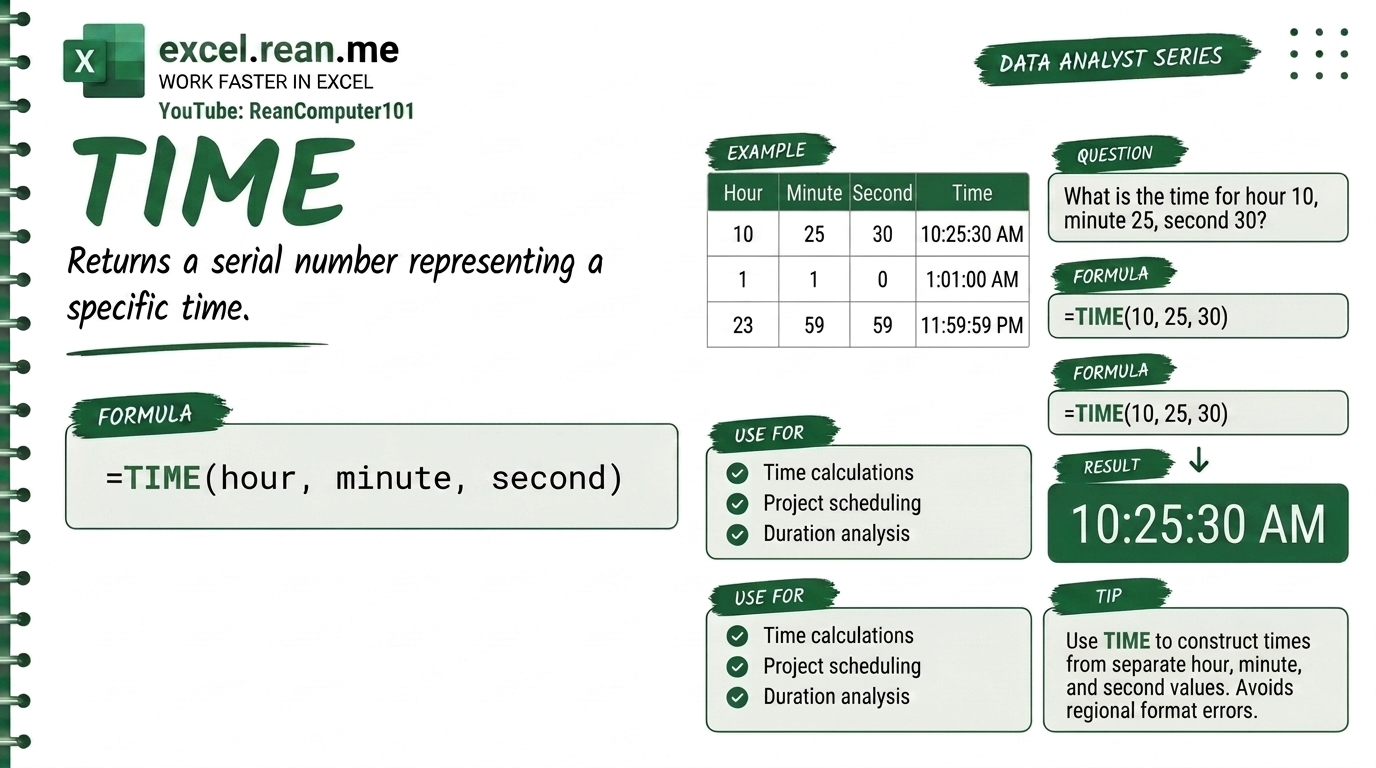
TIME function help you build a real Excel time value from 3 separate numbers: hour, minute, and second. Very useful when your hour, minute, second are in separate cells and you want to combine them into one proper time!
📚 Related Tutorial: Want to extract hour, minute, second from a time? Check out How to Use HOUR, MINUTE, and SECOND Functions in Excel!
🛠️ How TIME Function Work?
The TIME function take 3 numbers and combine them into one real Excel time value.
Formula Syntax:
=TIME(hour, minute, second)
| Parameter | Meaning | Example |
|---|---|---|
hour | Hour number from 0 to 23 (24-hour format) | 14 (2 PM) |
minute | Minute number from 0 to 59 | 45 |
second | Second number from 0 to 59 | 30 |
📺 Example #1: Build a Time from Numbers
If you want to create the time 2:45:30 PM (14 hours, 45 minutes, 30 seconds):
=TIME(14, 45, 30)
- Result:
2:45:30 PM(or14:45:30in 24-hour format)
For 9:00:00 AM:
=TIME(9, 0, 0)
- Result:
9:00 AM
📺 Example #2: Build a Time from Separate Cells
If your data has:
- Cell
A2= Hour →14 - Cell
B2= Minute →45 - Cell
C2= Second →30
=TIME(A2, B2, C2)
- Result:
2:45:30 PM
This is very useful when you import data from other system and hour, minute, second come in separate columns!
📺 Example #3: Add Hours or Minutes to Existing Time
Use TIME to add extra hours or minutes to a time in cell A2:
Add 2 hours and 30 minutes to a time:
=A2 + TIME(2, 30, 0)
- If
A2=9:00 AM, result =11:30 AM
Add 45 minutes to current time:
=NOW() + TIME(0, 45, 0)
- Result is current time plus 45 minutes!
💡 Easy Pro Tips for TIME Function
- Minute Overflow Is OK: If you enter
MINUTE = 90, Excel automatic convert to 1 hour 30 minutes.=TIME(0, 90, 0)gives1:30:00 AM. Very useful for time calculation! - Format Cell Correctly: After typing
TIMEformula, make sure cell format is set to Time format. If it show decimal number like0.614583, right-click cell → Format Cells → Choose Time format. - Calculate Time Difference: Want to find how many hours between start and end time?
Or if difference more than 24 hours:=TEXT(B2 - A2, "h:mm")=TEXT(B2 - A2, "[h]:mm")
Related Tutorials
Opens in new tab ↗How to Use HOUR, MINUTE, and SECOND Functions in Excel (Video in Khmer)
Learn how to extract hour, minute, and second from any time in Excel step-by-step with simple examples.
How to Use TEXTSPLIT Function in Excel Step-by-Step
Learn how to use TEXTSPLIT function in Excel step-by-step to split text values from hour, minute, and second numbers.
How to Use TIMEVALUE Function in Excel (Video in Khmer)
Learn how to use TIMEVALUE function in Excel step-by-step with simple examples to convert text time into real Excel time.