How to Use TIMEVALUE Function in Excel (Video in Khmer)
Learn how to use TIMEVALUE function in Excel step-by-step with simple examples to convert text time into real Excel time.
Hello everyone! Today I show you very easy step-by-step how to use TIMEVALUE() function in Microsoft Excel and follow this video to learn. In this video I use the Khmer language.
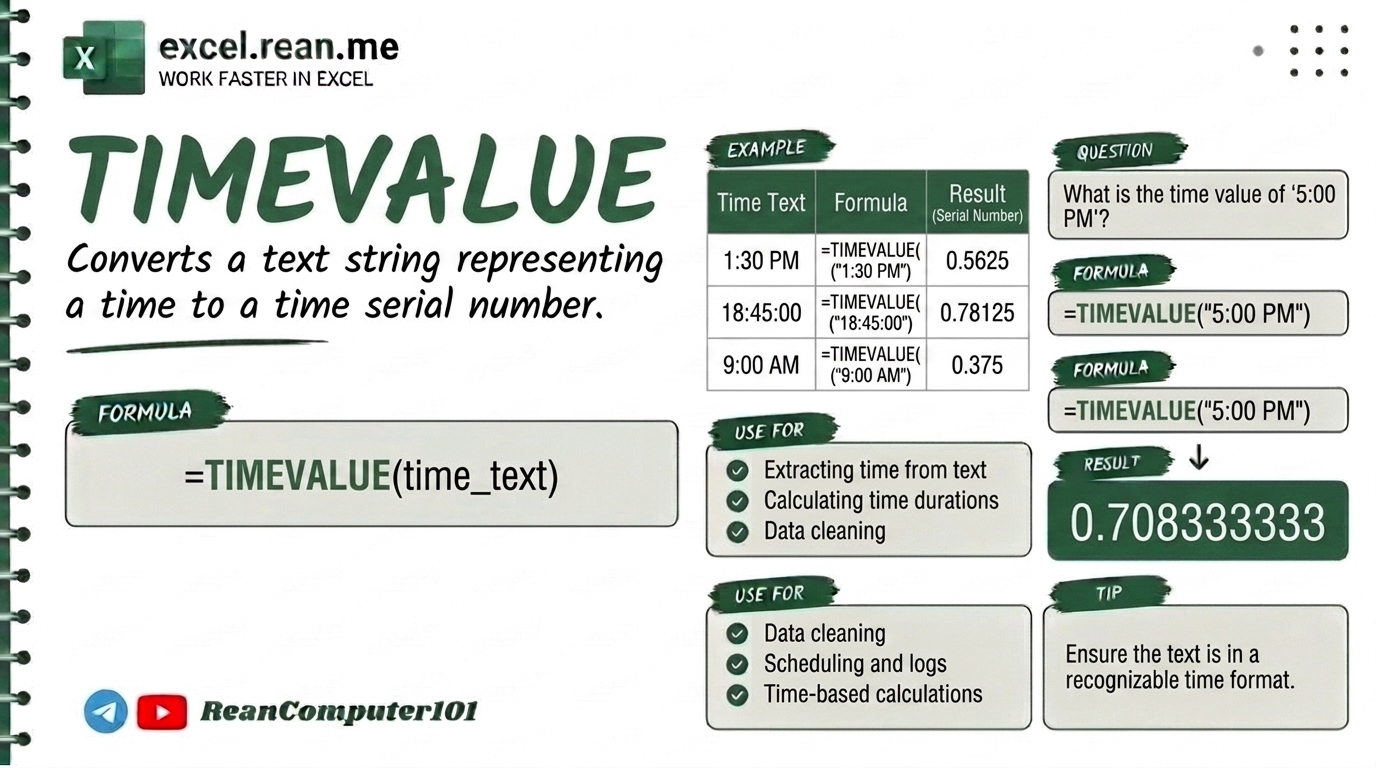
TIMEVALUE function help you convert a time stored as text into a real Excel time. Very useful when you copy data from website or export from software and time become text format!
📚 Related Tutorial: Want to convert text date to real date? Check out How to Use DATEVALUE Function in Excel ↗!
🛠️ How TIMEVALUE Function Work?
The TIMEVALUE function convert text time into a real Excel time value (decimal number from 0 to 0.99998).
Formula Syntax:
=TIMEVALUE(time_text)
| Parameter | Meaning | Example |
|---|---|---|
time_text | Time text in quotes or cell reference with text time | "2:45 PM" or A2 |
📺 Example #1: Convert Text Time to Real Time
If cell A2 contain text time "2:45:00 PM":
=TIMEVALUE(A2)
- Result: Real Excel time. Change cell format to Time format to display
2:45:00 PMproperly!
Using text string directly in formula:
=TIMEVALUE("14:30:00")
- Result:
2:30:00 PM(real time value)
💡 Important Note: When formula return decimal number like
0.61458instead of time, select cell and change format to Time in Home tab (Number Format dropdown → Time).
📚 More Related Excel Tutorials:
- How to Use TIME Function in Excel ↗ — Build time from hour, minute, second numbers.
- How to Use HOUR, MINUTE, and SECOND Functions in Excel ↗ — Extract hour, minute, second from time.
- Top 15 Basic Excel Formulas for Beginners ↗ — Master essential Excel formulas.
Related Tutorials
Opens in new tab ↗How to Use TIME Function in Excel (Video in Khmer)
Learn how to use TIME function in Excel step-by-step to build real time values from hour, minute, and second numbers.
How to Use the VALUE Function in Excel (video in khmer) + Tips
Learn how to convert text numbers to real numbers in Excel using VALUE formula step by step with easy examples.
How to Use the WEEKNUM Function in Excel (video in khmer)
Learn how to get the week number of the year from a date in Excel using WEEKNUM formula step by step with simple examples.