Top Microsoft Excel Tips and Tricks Every Spreadsheet User Should Know (Download Free)
Transform the way you work in Excel. Learn powerful time-saving tips and tricks including Flash Fill, Quick Analysis, Transpose, dynamic drop-down lists, AutoSum hacks, and the hidden Camera tool.
Most Excel users spend hours performing repetitive manual tasks—such as copying names, reformatting columns, calculating row totals, or transposing tables. Microsoft Excel has built-in smart tools and hidden features that can cut hours of spreadsheet work down to seconds.
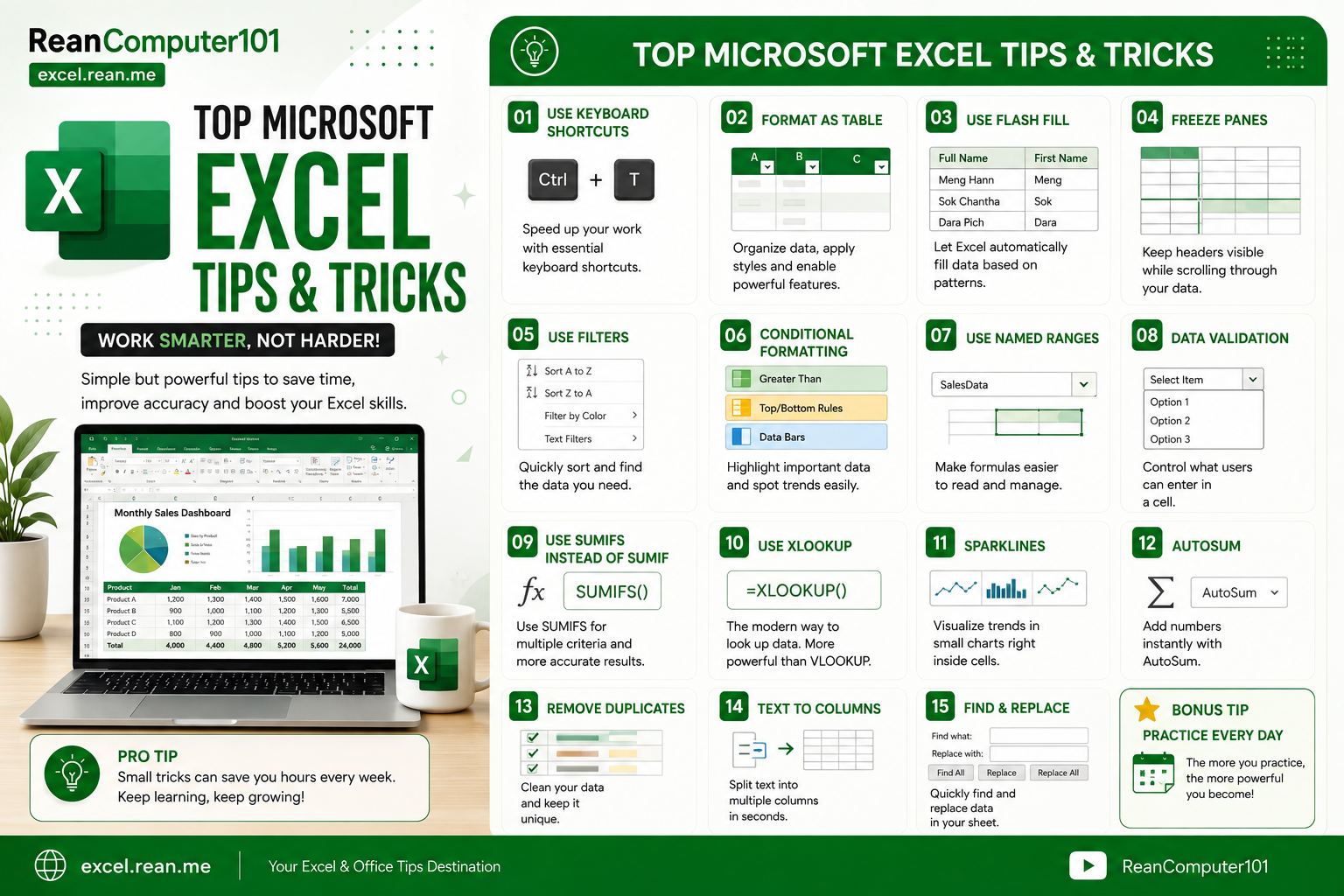 Download High Resolution Image at the end of the post.
Here is a curated collection of the most powerful Microsoft Excel tips and tricks that will elevate your efficiency and make you look like a spreadsheet pro.
1. Extract & Combine Data Instantly with Flash Fill (Ctrl + E)
Instead of writing complex LEFT, RIGHT, MID, or CONCATENATE formulas to split or merge text, use Flash Fill.
- How it works:
- Type a desired example in the column next to your raw data (e.g., type "John" if column A has "John Smith").
- Press
Ctrl+Eon Windows (or go to Data > Flash Fill). - Excel recognizes the pattern and fills out the entire column instantly!
Use cases: Splitting full names into First/Last names, extracting domain names from email addresses, or formatting phone numbers (
(123) 456-7890).
2. Generate Instant Charts & Formatting with Quick Analysis (Ctrl + Q)
The Quick Analysis tool gives you 1-click access to conditional formatting, charts, totals, and sparklines.
- How to use it:
- Highlight any data table or cell range.
- Click the small Quick Analysis icon that appears at the bottom-right corner of your selection (or press
Ctrl+Q). - Choose from Formatting (Color Scales, Data Bars), Charts, Totals (SUM, AVERAGE, % of Total), or Tables.
3. Transpose Rows to Columns Without Formulas
Need to convert a horizontal list into a vertical column (or vice versa)? You don't need complex array formulas.
- Step-by-step:
- Highlight and copy your original range (
Ctrl+C). - Right-click where you want to paste the converted data.
- Under Paste Options, click the Transpose icon (or press
Ctrl+Alt+Vand check Transpose).
- Highlight and copy your original range (
4. AutoSum Multiple Rows & Columns Simultaneously (Alt + =)
Instead of dragging the SUM formula across every row and column individually:
- The Trick:
- Highlight your data table plus one extra empty row at the bottom and one extra empty column on the right.
- Press
Alt+=(orCmd+Shift+Ton Mac). - Excel automatically inserts
SUMformulas into all empty summary cells at once!
5. Copy Only Visible Cells (Ignore Hidden Rows) (Alt + ;)
When you copy a dataset that has filtered or hidden rows, standard copy-pasting often pastes the hidden data too.
- How to copy visible cells only:
- Select your filtered or grouped range.
- Press
Alt+;(semicolon). This highlights only the visible cells. - Press
Ctrl+Cto copy, thenCtrl+Vto paste. Only the visible data will be transferred!
6. Convert Data into an Official Excel Table (Ctrl + T)
Working with plain ranges limits what you can do. Converting your data into an official Excel Table unlocks major productivity boosts:
-
Key Benefits:
- Auto-Expanding Formulas: New rows added automatically inherit formulas from above.
- Dynamic Chart Sourcing: Charts tied to an official table automatically update when new data is entered.
- Automatic Alternating Row Colors: Clean visual presentation with zero effort.
- Structured References: Write readable formulas like
=SUM(Sales[Amount]).
-
Shortcut: Click inside your dataset and press
Ctrl+T.
7. Lock Format Painter with a Double-Click
Single-clicking the Format Painter paintbrush lets you apply formatting once. Double-clicking keeps it active indefinitely!
- How to use it:
- Select the cell with the formatting you want to copy.
- Double-click the Format Painter icon on the Home tab ribbon.
- Click as many different cells, rows, or ranges across your sheet as you like!
- Press
Escwhen finished to turn it off.
8. Prevent Data Entry Errors with Drop-Down Lists
Avoid misspelled names or invalid category codes by restricting cell inputs to a controlled drop-down selection.
- Step-by-Step setup:
- Select the cells where you want the drop-down menu.
- Go to Data > Data Validation.
- Under Allow, select List.
- In the Source box, type your options separated by commas (e.g.,
Approved, Pending, Rejected) or select a cell range containing your items. - Click OK.
9. Repeat Your Last Action with F4
The F4 key is one of Excel's greatest hidden gems. It repeats whatever action you performed last.
- Examples:
- Insert a row → Click another row & press
F4to insert another. - Highlight a cell green → Select another cell & press
F4to paint it green. - Delete a worksheet row → Select another & press
F4to delete it instantly.
- Insert a row → Click another row & press
Note: When editing inside a formula box,
F4toggles cell locking absolute references (A1→$A$1→A$1→$A1).
10. Create Live Dashboard Screenshots with the Excel Camera Tool
The Camera Tool takes a dynamic visual snapshot of any cell range. When the underlying data updates, the image updates live in real-time!
- How to enable & use the Camera Tool:
- Go to File > Options > Quick Access Toolbar.
- Under Choose commands from, select Commands Not in the Ribbon.
- Scroll down, select Camera, click Add, and click OK.
- Now select any cell range or chart, click the Camera icon in your toolbar, and click anywhere to place the live image!
11. Reveal All Formulas in Your Sheet (Ctrl + `)
Troubleshooting formula errors in a large worksheet? Stop clicking into individual cells one by one.
- Press
Ctrl+`(Grave Accent / Tilde key next to number 1). - Excel instantly toggles between displaying calculated cell values and showing the actual raw formulas across the entire sheet!
12. Remove Duplicates in Seconds
Cleaning messy datasets with duplicate records is simple:
- Select your column or dataset.
- Go to the Data tab on the ribbon.
- Click Remove Duplicates.
- Check the columns you want Excel to inspect for duplicate entries, and click OK.
Summary Cheat Sheet: Top Excel Tips
| Tip / Trick | Feature Name | Shortcut / Action | Primary Benefit |
|||||
| Auto Fill Patterns | Flash Fill | Ctrl + E | Split or combine text without formulas |
| Instant Analytics | Quick Analysis | Ctrl + Q | Fast charts, heatmaps, & summary totals |
| Flip Layout | Transpose | Ctrl + Alt + V → E | Change rows to columns instantly |
| Batch Totals | AutoSum | Alt + = | Sum rows and columns simultaneously |
| Visible Only | Select Visible Cells | Alt + ; | Ignore hidden/filtered rows during copy |
| Table Mode | Excel Table | Ctrl + T | Dynamic expansion & structured formulas |
| Sticky Painter | Format Painter | Double-click Paintbrush | Apply styles to multiple targets |
| Input Rules | Data Validation | Data → Validation → List | Create clean drop-down options |
| Repeat Command | Repeat Last Action | F4 | Re-apply recent formatting or insertion |
| Formula Audit | Show Formulas | Ctrl + ` | Unhide all sheet formulas at once |
Download Microsoft Excel Tips and Tricks
📥 Download High Resolution ImageNext Steps
Try adopting 2 or 3 of these tips today—such as Ctrl + E for Flash Fill and Alt + = for instant AutoSum. Adding these simple habits to your daily spreadsheet routine will dramatically speed up your data analysis workflow!
📚 Useful Resources
- Essential Excel Keyboard Shortcuts Every User Should Know
- Top 15 Basic Excel Formulas for Beginners
- Top Microsoft Word Tips and Tricks Every Document Creator Should Know
- Top Microsoft PowerPoint Tips and Tricks Every Presenter Should Know
- How to Print Documents in Word, Excel, and PowerPoint
- Free Download PDF - 50 Popular Excel Formulas Cheatsheet (Khmer Language)
Related Tutorials
Opens in new tab ↗Essential Excel Keyboard Shortcuts Every User Should Know (Download Free)
Stop reaching for the mouse. Master these high-frequency Excel shortcuts to navigate, select, format, and edit data significantly faster.
Top Microsoft Word Tips and Tricks Every Document Creator Should Know (Download Free)
Master Microsoft Word with these essential productivity tips and tricks, including Spike cut-and-paste, random text generation, instant horizontal lines, Quick Parts, vertical box selection, and PDF editing.
Top Microsoft PowerPoint Tips and Tricks Every Presenter Should Know (Download Free)
Transform your PowerPoint presentations. Discover game-changing tips and tricks including Morph transitions, SmartArt text conversions, Eyedropper color matching, Slide Master, background removal, and live presenter tricks.