How to Use AVERAGE / AVERAGEIF Functions in Excel (Video in Khmer)
Learn how to calculate the average of numbers in Excel using AVERAGE/AVERAGEIF function with simple examples and Khmer video guides.
Hello everyone! Today I show you very easy step-by-step how to use AVERAGE() and AVERAGEIF() function in Microsoft Excel.
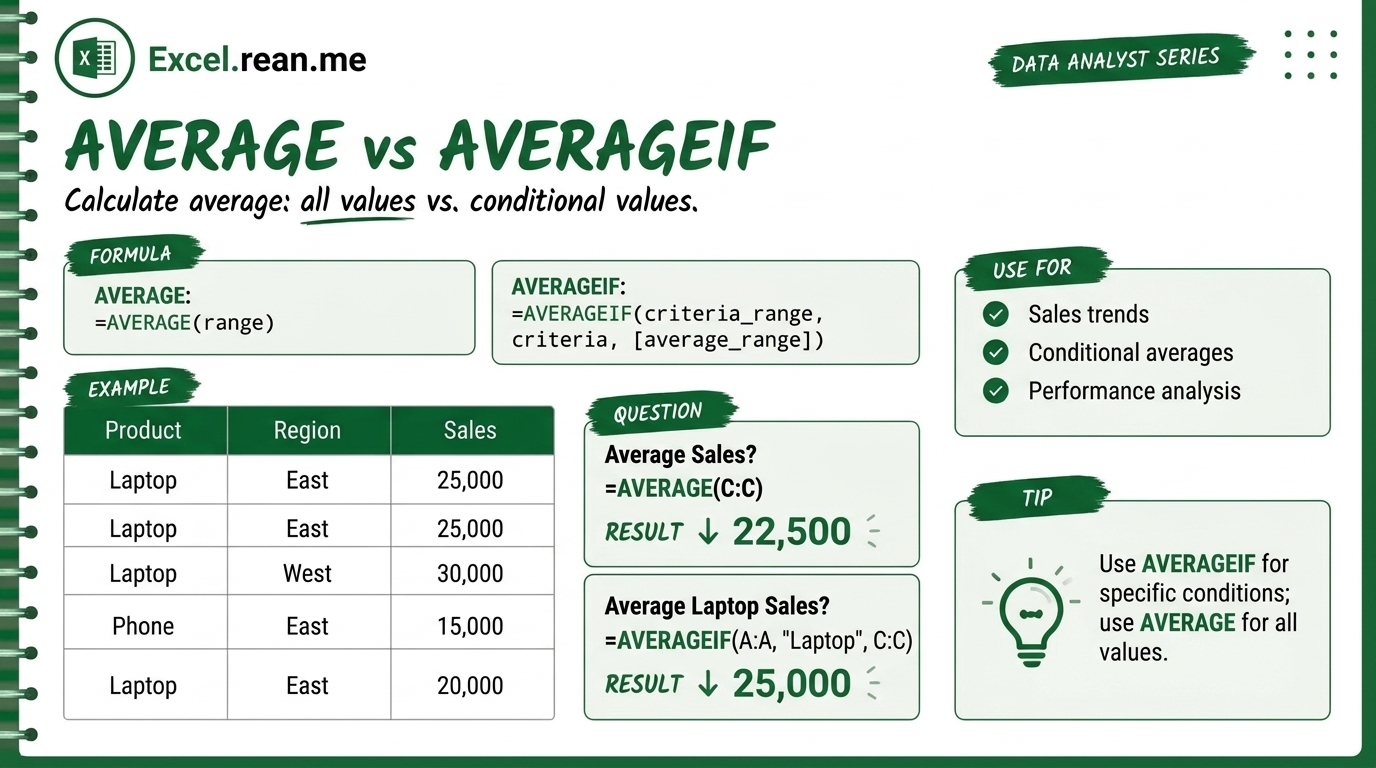
AVERAGE is very important formula that help you calculate mean (average) of a list of numbers. For example: average score of students, average sales amount, average working hours — all very easy with this formula!
📚 Related Tutorial: Learn more foundational formulas in our guide on Top 15 Basic Excel Formulas for Beginners ↗!
🛠️ How AVERAGE Function Work?
The AVERAGE function add all numbers together and then divide by total count of numbers. It is same as this math:
Average = Total Sum ÷ Count of Numbers
Formula Syntax:
=AVERAGE(number1, [number2], ...)
Or use a range (most common way):
=AVERAGE(start_cell:end_cell)
⚠️ Important:
AVERAGEautomatically ignores blank cells and text values! Only numbers are counted.
📺 Example #1: Average Student Scores
Suppose column B has student scores and you want to find average score:
| Student | Score |
|---|---|
| Dara | 85 |
| Sokha | 92 |
| Bopha | 78 |
| Chann | 88 |
=AVERAGE(B2:B5)
- Result:
85.75(85 + 92 + 78 + 88 = 343 ÷ 4 = 85.75)
📺 Example #2: Calculate Average Without AVERAGE Formula (Manual Way)
If you don't want to use AVERAGE(), you can also do it manually with SUM and COUNT:
=SUM(B2:B5) / COUNT(B2:B5)
SUM(B2:B5)→ add all scores together =343COUNT(B2:B5)→ count how many numbers =4- Result:
343 ÷ 4 = 85.75(same result!)
📺 Example #3: Average Only Scores Above 80 (AVERAGEIF)
If you want average of only students who scored more than 80, use AVERAGEIF:
=AVERAGEIF(B2:B5, ">80")
- It will only average
85,92, and88(skip78because it is not above80). - Result:
88.33
📚 Related Tutorial: Want to master Excel keyboard shortcuts? Check out Learn All Excel Keyboard Shortcuts ↗!
💡 Easy Pro Tips for AVERAGE Function
- Quick AutoSum Shortcut: Select your number column → click AutoSum (Σ) on Home tab → choose Average. Excel write formula for you automatically!
- Exclude Zeros from Average: If cell have
0but you want to ignore it and only average real values:=AVERAGEIF(A1:A10, ">0") - Round the Average Result: If you want show only 2 decimal places:
=ROUND(AVERAGE(A1:A10), 2) - Average Multiple Conditions (AVERAGEIFS): Want average of only students in class A with score above 80?
=AVERAGEIFS(score_range, class_range, "A", score_range, ">80")
Related Tutorials
Opens in new tab ↗How to Use AVERAGEIF Function in Excel + Tips (Video in Khmer)
Learn how to use AVERAGEIF function in Excel step-by-step to calculate average of numbers based on one condition with simple examples, tips, and video tutorial in Khmer.
How to Use XMATCH Function in Excel (Multiple Examples)
Learn how to use XMATCH function in Excel step-by-step to lookup value in table or range with simple examples and video guide.
How to Use CHOOSE Function in Excel + Tips (Video in Khmer)
Learn how to use CHOOSE function in Excel step-by-step to pick values by position number with simple examples, tips, and video tutorial in Khmer.