How to Use DATE Function in Excel (Video in Khmer)
Learn how to use DATE function in Excel step-by-step to build real dates from year, month, and day numbers.
Hello everyone! Today I show you very easy step-by-step how to use DATE() function in Microsoft Excel and follow this video to learn. In this video I use the Khmer language.
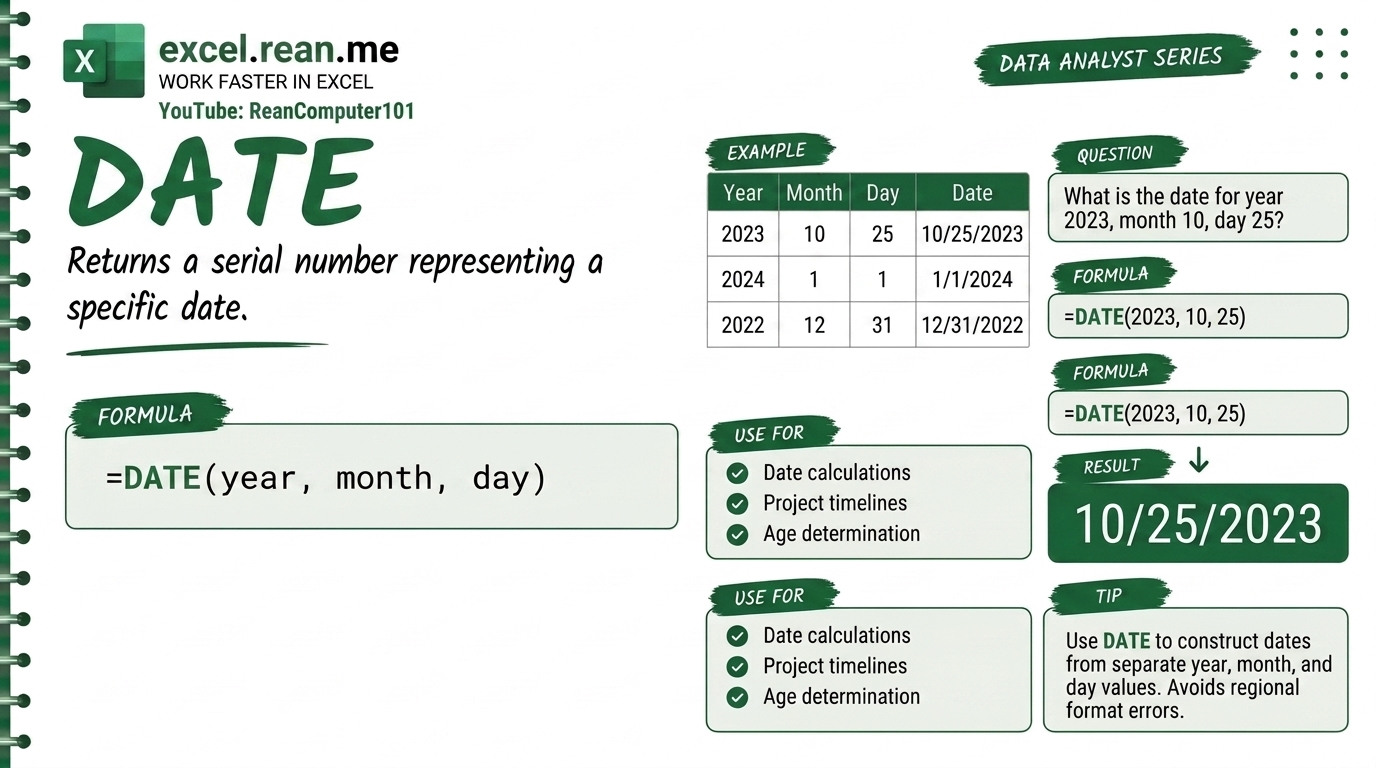
DATE function help you build a real Excel date value from 3 separate numbers: year, month, and day. Very useful when your year, month, day are in separate cells and you want to combine them into one proper date!
📚 Related Tutorial: Want to extract day, month, year from a date? Check out How to Use DAY, MONTH, and YEAR Functions in Excel!
🛠️ How DATE Function Work?
The DATE function take 3 numbers and combine them into one real Excel date.
Formula Syntax:
=DATE(year, month, day)
| Parameter | Meaning | Example |
|---|---|---|
year | 4-digit year number | 2026 |
month | Month number from 1 to 12 | 9 (September) |
day | Day number from 1 to 31 | 15 |
📺 Example #1: Build a Date from Numbers
If you want to create the date September 15, 2026:
=DATE(2026, 9, 15)
- Result:
2026-09-15(or9/15/2026depending on your Excel date format)
📺 Example #2: Build a Date from Separate Cells
If your data has:
- Cell
A2= Year →2026 - Cell
B2= Month →9 - Cell
C2= Day →15
=DATE(A2, B2, C2)
- Result:
2026-09-15
This is very useful when you import data from other system and year, month, day come in separate columns!
📺 Example #3: Add Months or Days to a Date
Use DATE to calculate future or past dates easily:
Add 3 months to a date in cell A2:
=DATE(YEAR(A2), MONTH(A2) + 3, DAY(A2))
- If
A2=2026-09-15, result =2026-12-15(3 months later)
Add 30 days to today:
=TODAY() + 30
- Simpler way! Just add number to TODAY() for days calculation.
💡 Easy Pro Tips for DATE Function
- Month Overflow Is OK: If you enter
MONTH = 13, Excel automatic move to next year January.=DATE(2026, 13, 1)gives2027-01-01. Very useful for month calculation! - Combine with DATEDIF: Want to calculate age or days between two dates?
This calculate how many full years old from birth date=DATEDIF(DATE(2000, 5, 20), TODAY(), "Y")May 20, 2000! - Fix Text Date: If your date is stored as text like
"20260915", useDATEwithLEFT,MID,RIGHTto convert:=DATE(LEFT(A2,4), MID(A2,5,2), RIGHT(A2,2))
Related Tutorials
Opens in new tab ↗How to Use DATEVALUE Function in Excel (Video in Khmer)
Learn how to use DATEVALUE function in Excel step-by-step to convert text date to real date.
How to Use YEARFRAC Function in Excel + Tips (Video in Khmer)
Learn how to use YEARFRAC function in Excel step-by-step to calculate fraction of year between two dates with simple examples and video tutorial.
How to Use XMATCH Function in Excel (Multiple Examples)
Learn how to use XMATCH function in Excel step-by-step to lookup value in table or range with simple examples and video guide.