How to Use DAY, MONTH, and YEAR Functions in Excel (Video in Khmer)
Learn how to extract day, month, and year from any date in Excel step-by-step with simple examples.
Hello everyone! Today I show you very easy step-by-step how to use DAY(), MONTH(), and YEAR() functions in Microsoft Excel.
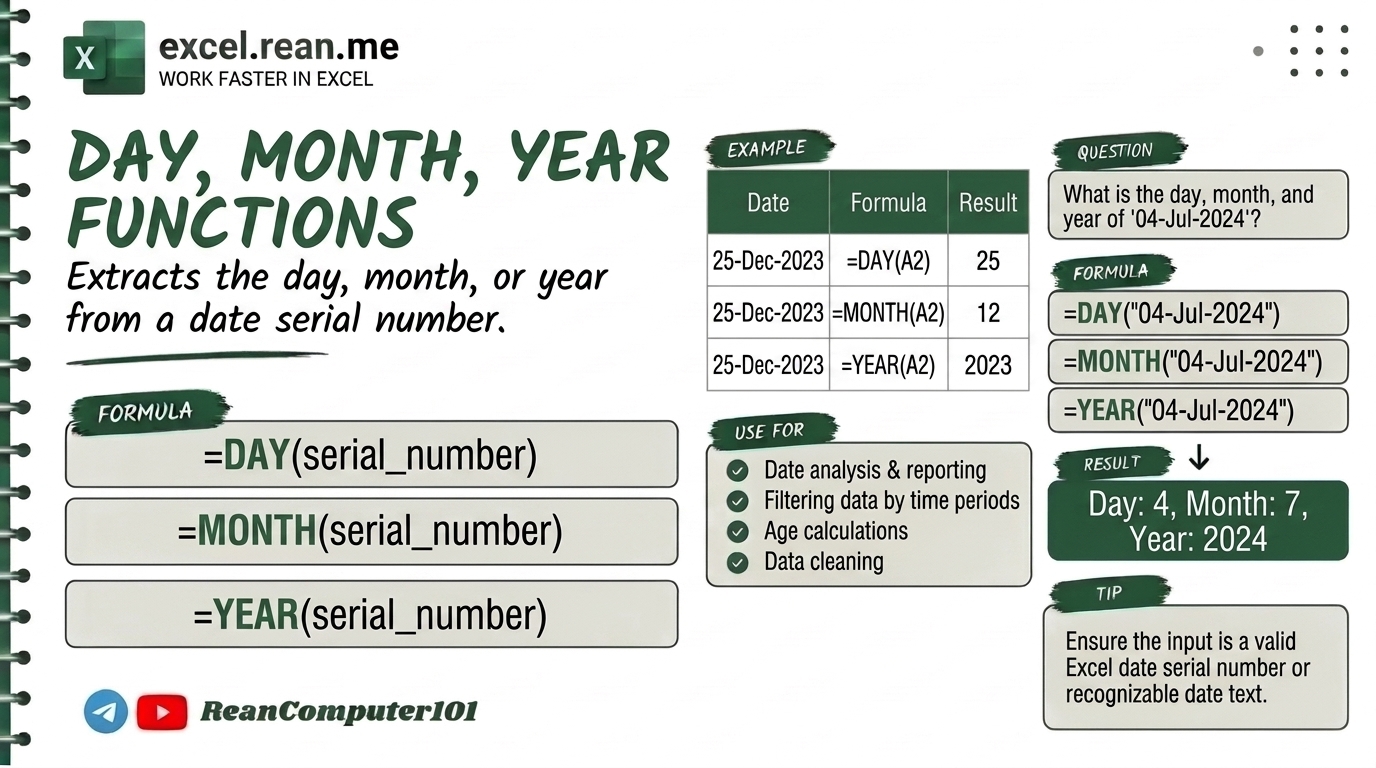
If you have a full date like 2026-09-15 in your spreadsheet and you want to extract only the day number, month number, or year number into separate columns, these 3 formulas help you very fast!
📚 Related Tutorial: Want to get current date automatically? Check out How to Use NOW() and TODAY() in Excel!
📊 Quick Comparison: DAY vs MONTH vs YEAR
| Function | What It Extracts | Result Example | Best Used For |
|---|---|---|---|
DAY | Day number of the month (1 to 31) | 15 | Extracting day from birth date or invoice date |
MONTH | Month number of the year (1 to 12) | 9 (September) | Grouping sales or reports by month |
YEAR | 4-digit year number (1900 to 9999) | 2026 | Filtering data by year |
🛠️ 1. How to Use DAY Function in Excel
The DAY function extracts the day of the month from a date cell (returns a number from 1 to 31).
Formula Syntax:
=DAY(serial_number)
Simple Example:
If cell A2 has date 2026-09-15:
=DAY(A2)
- Result:
15
🛠️ 2. How to Use MONTH Function in Excel
The MONTH function extracts the month number from a date cell (returns a number from 1 to 12, where 1 = January and 12 = December).
Formula Syntax:
=MONTH(serial_number)
Simple Example:
If cell A2 has date 2026-09-15:
=MONTH(A2)
- Result:
9(September)
🛠️ 3. How to Use YEAR Function in Excel
The YEAR function extracts the 4-digit year number from a date cell.
Formula Syntax:
=YEAR(serial_number)
Simple Example:
If cell A2 has date 2026-09-15:
=YEAR(A2)
- Result:
2026
💡 Combine DAY, MONTH, and YEAR Together (DATE Function)
If you have separate columns for Year (C2), Month (B2), and Day (A2), you can combine them back into a real Excel date using =DATE():
=DATE(year, month, day)
=DATE(C2, B2, A2)
- Result:
2026-09-15
📚 Related Tutorial: Learn more foundational formulas in our guide on Top 15 Basic Excel Formulas for Beginners ↗!
💡 Pro Tips for Date Functions
- Cell Must Be Real Date: If
DAY(),MONTH(), orYEAR()gives#VALUE!error, your date cell might be saved as text! Convert it to Date format first. - Combine with TODAY(): Want to find current month number? Use
=MONTH(TODAY()). - Format Month Name: If you want to show month name like
"September"instead of number9, use=TEXT(A2, "mmmm").
Related Tutorials
Opens in new tab ↗How to Use DAY, DAYS and DAYS360 Function in Excel + Tips (Video in Khmer)
Learn how to use DAY, DAYS, and DAYS360 functions in Excel step-by-step to extract day numbers and calculate day differences between two dates with simple examples and video tutorial.
Top 20+ Basic Excel Formulas for Beginners (Video in Khmer)
Learn 20+ essential Excel formulas for beginners: SUM, MIN, MAX, AVERAGE, IF, RANK, COUNT, COUNTA, COUNTIF, SUMIF, VLOOKUP, CONCATENATE, TRIM, UPPER, LOWER, TODAY, NOW, MONTH, DAY, and YEAR with easy video guide.
How to Use the WEEKNUM Function in Excel (video in khmer)
Learn how to get the week number of the year from a date in Excel using WEEKNUM formula step by step with simple examples.