How to Use Now() and Today() in Excel: Simple Guide with Video in Khmer
Learn how to use NOW() and TODAY() together in Excel. Easy step-by-step tutorial.
In this tutorial, we will explore the NOW() and TODAY() functions in Microsoft Excel. These two functions are incredibly useful for working with dates and times within your spreadsheets.
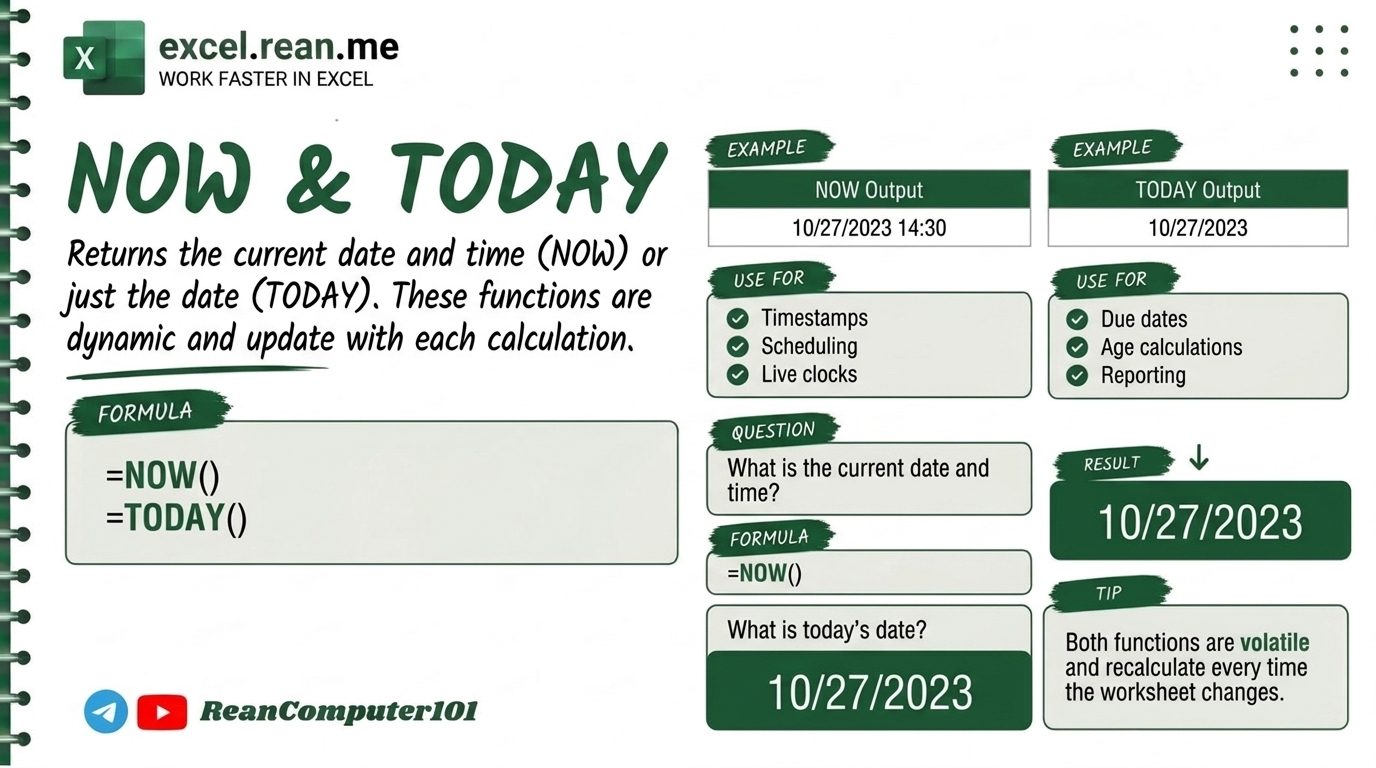
The NOW() Function
The NOW() function returns the current date and time, updating automatically every time the worksheet is recalculated.
Syntax:
=NOW()
Example:
If you enter =NOW() in a cell, it will display the current date and time, for example, 9/1/2024 1:37 PM.
The TODAY() Function
The TODAY() function returns the current date only, without the time component. It also updates automatically every time the worksheet is recalculated.
Syntax:
=TODAY()
Example:
If you enter =TODAY() in a cell, it will display the current date, for example, 9/1/2026.
NOW() & TODAY() Video Tutorial (Khmer)
📚 Related Tutorial: Learn more foundational formulas in our guide on Top 15 Basic Excel Formulas for Beginners ↗!
💡 Quick Tips for Using NOW() and TODAY()
- Automatic Updates: Both functions update automatically whenever the worksheet is recalculated.
- Format Cells: To display the date or time in different formats, right-click on the cell, select Format Cells, and choose your desired format from the Number tab.
- Calculations: You can use these functions in calculations. For example,
=TODAY() - A1will calculate the number of days between the current date and the date in cell A1.
Related Tutorials
Opens in new tab ↗How to Use the WEEKNUM Function in Excel (video in khmer)
Learn how to get the week number of the year from a date in Excel using WEEKNUM formula step by step with simple examples.
How to Use the WEEKDAY Function in Excel (video in khmer)
Learn how to get the day number from a date in Excel using WEEKDAY formula step by step with easy examples.
How to Use DAY, MONTH, and YEAR Functions in Excel (Video in Khmer)
Learn how to extract day, month, and year from any date in Excel step-by-step with simple examples.