How to Use REPLACE Formula in Excel (Video in Khmer) + Tips
Learn how to use REPLACE function in Excel step-by-step to swap or insert text based on position with simple examples.
Hello everyone! Today i will show you how to use REPLACE formula in Microsoft Excel step by step.
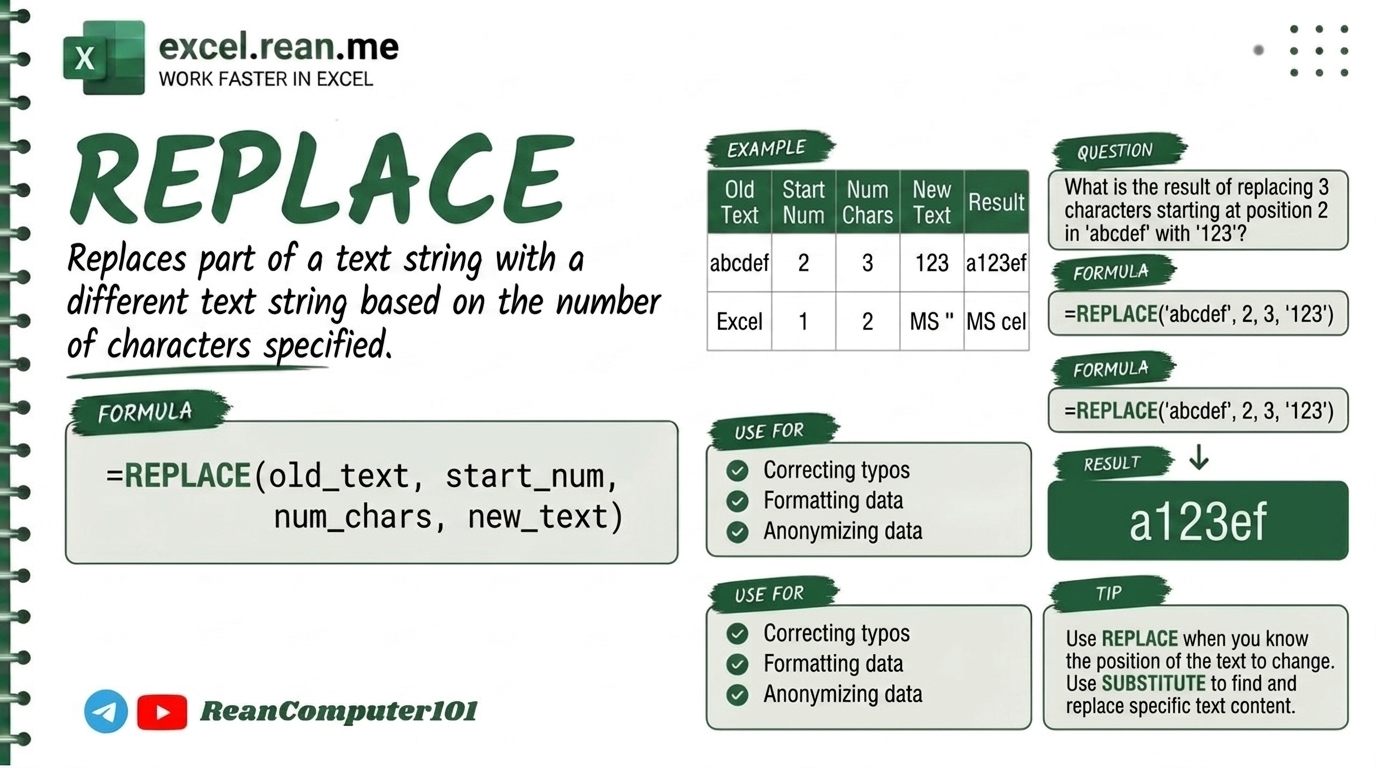
If you have text, phone numbers, product codes, or dates and you want to swap specific characters at fixed position with new text (example: hide middle phone digits 012-345-678 into 012-***-678), the REPLACE formula help you very fast and easy!
📚 Related Tutorial: Want to clean extra spaces first? Check out How to Use Text Cleaning Formulas in Excel!
🛠️ Formula Syntax & How It Works
=REPLACE(old_text, start_num, num_chars, new_text)
old_text: The text cell you want to replace characters inside (example:A2).start_num: Character position number where replacement start (example:5).num_chars: How many characters you want to delete/replace (example:3).new_text: The new text string you want to put in that position (example:"***"or"-").
📊 Simple Examples
Example 1: Hide Middle Digits of Phone Number (Data Privacy)
If cell A2 contain phone number "012-345-678":
=REPLACE(A2, 5, 3, "***")
- Result:
012-***-678(start at 5th character, replace 3 numbers with***)
Example 2: Update Year inside Code or Date
If cell A2 contain code "2025-ITEM-001":
=REPLACE(A2, 1, 4, "2026")
- Result:
2026-ITEM-001(replace first 4 characters with"2026")
Example 3: Insert Dash - Without Deleting Characters
If cell A2 contain "ID1001" and you want "ID-1001":
=REPLACE(A2, 3, 0, "-")
- Result:
ID-1001(setnum_chars=0to insert text without deleting!)
💡 Pro Tips for REPLACE Formula
- REPLACE vs SUBSTITUTE Difference:
REPLACE()swaps characters based on position index (example: start at character 5, replace 3 characters).SUBSTITUTE()swaps characters based on matching text string (example: find all"2025"and change to"2026"regardless of position).
- Insert Text Without Deleting: Set
num_chars = 0to insert hyphen-or slash/into code strings without removing any existing letters! - Mask Confidential Phone / ID Data: Use
REPLACEto hide private customer phone numbers or ID cards before sharing reports. - Combine with SEARCH: Use
SEARCH()insidestart_numto dynamically find position where replacement should start!
📚 Related Tutorials
Related Tutorials
Opens in new tab ↗How to Use REDUCE Function in Excel + Tips
Learn how to use REDUCE function in Excel step-by-step to swap or insert text based on position with simple examples.
How to Use SUBSTITUTE Function in Excel + Tips
Learn how to use SUBSTITUTE function in Excel step-by-step to replace text with new text, with simple examples and Khmer video guide.
How to Use SORT and SORTBY Functions in Excel + tip
Learn how to use SORT and SORTBY functions in Excel step-by-step with easy examples and Khmer video guide.