How to Use the SUM Formula in Excel: Easy Guide
Learn how to add numbers in Excel using the SUM formula. Includes simple examples, quick shortcuts, and fixes for common errors.
Hi veryone! today i will show you how to use sum formula in excel. This is basic formula for beginner.
The SUM formula is the easiest way to add numbers together in Excel. You can use it to add single cells, a line of cells, or multiple groups of numbers.
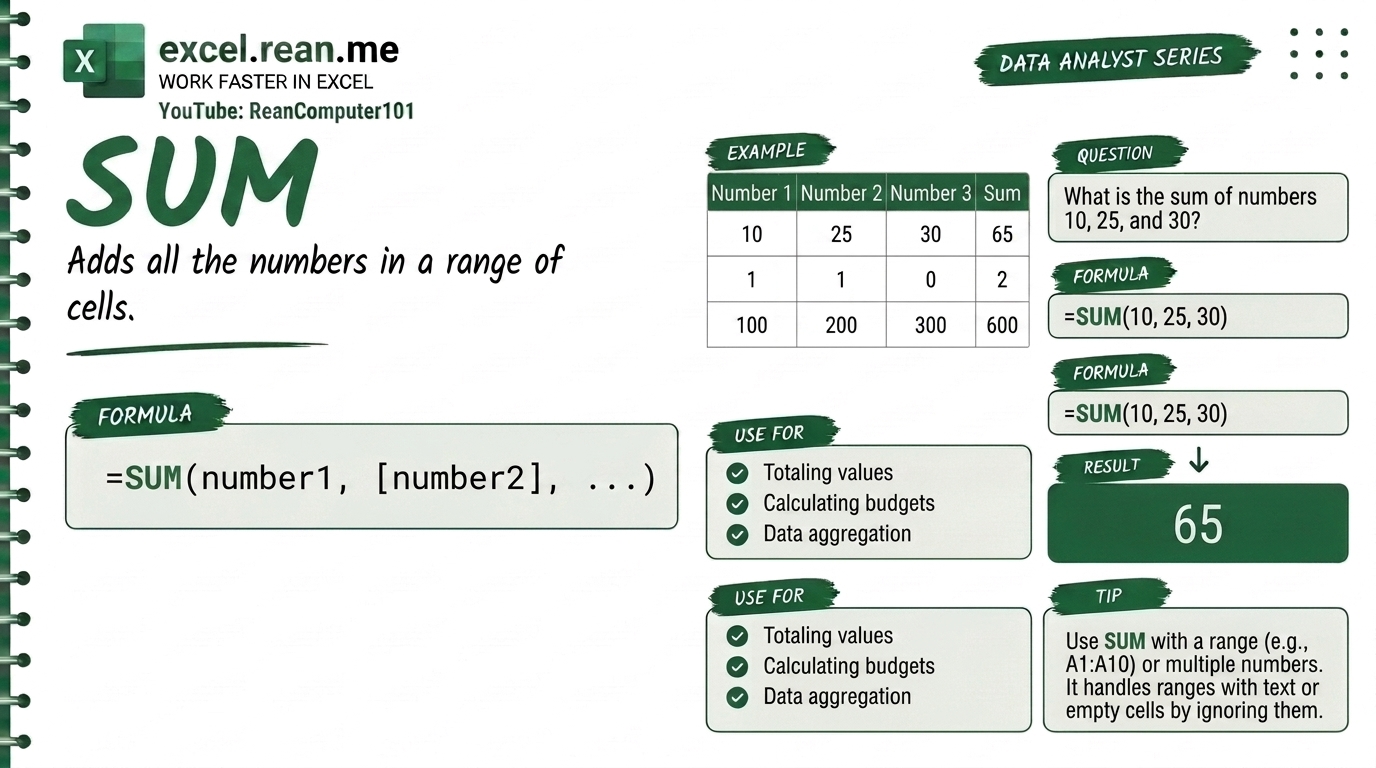
Formula Syntax
Here is how you write the formula:
=SUM(number1, [number2], ...)
- number1: The first number or range of cells you want to add (Required).
- number2, ...: Other numbers or cell ranges you want to add (Optional).
You can also write it simply with a range:
=SUM(start_cell:end_cell)
3 Simple Ways to Use SUM
1. Add a List of Cells (Range)
To add a whole column or row of numbers (like A1 to A10):
=SUM(A1:A10)
2. Add Separate Cells or Groups
To add cells from different places, separate them with commas:
=SUM(A1:A10, C1:C10, E5)
This adds everything in A1:A10, everything in C1:C10, and cell E5.
3. Video Tutorial in khmer
📚 Related Tutorial: Learn more foundational formulas in our guide on Top 15 Basic Excel Formulas for Beginners ↗!
4. Quick AutoSum Shortcut ⚡
You do not have to type the formula manually. Click an empty cell below your numbers and press:
- Windows:
Alt+= - Mac:
Cmd+Shift+T(orOption+Cmd+=)
Excel will automatically write =SUM(...) for you. Press Enter to get the total!
Handy Tips
Add an Entire Column
If you keep adding new rows, you can sum the whole column:
=SUM(A:A)
Note: Put this formula in a different column (like B1) so Excel does not get confused.
Do Math with the Result
You can multiply or calculate percentages directly on your total:
=SUM(A1:A10) * 0.10
(This calculates 10% of the total sum).
Fixing Common Problems
| Problem | Why It Happens | How to Fix It |
|---|---|---|
| SUM shows 0 | The numbers are saved as text | Select the cells, click the yellow error icon, and click Convert to Number. |
#REF! Error | A cell in your formula was deleted | Press Ctrl + Z to undo, or update the cell range. |
#VALUE! Error | A cell has invalid text typed into the formula | Make sure you only use cell ranges like SUM(A1:A10). |
Related Tutorials
Opens in new tab ↗INT vs MOD Function in Excel: What is the Difference? (Easy Guide)
Learn the difference between INT and MOD functions in Excel. Very simple examples to help you understand whole numbers and remainders.
How to Use the VALUE Function in Excel (video in khmer) + Tips
Learn how to convert text numbers to real numbers in Excel using VALUE formula step by step with easy examples.
How to Use the WEEKNUM Function in Excel (video in khmer)
Learn how to get the week number of the year from a date in Excel using WEEKNUM formula step by step with simple examples.