How to Use the VALUE Function in Excel (video in khmer) + Tips
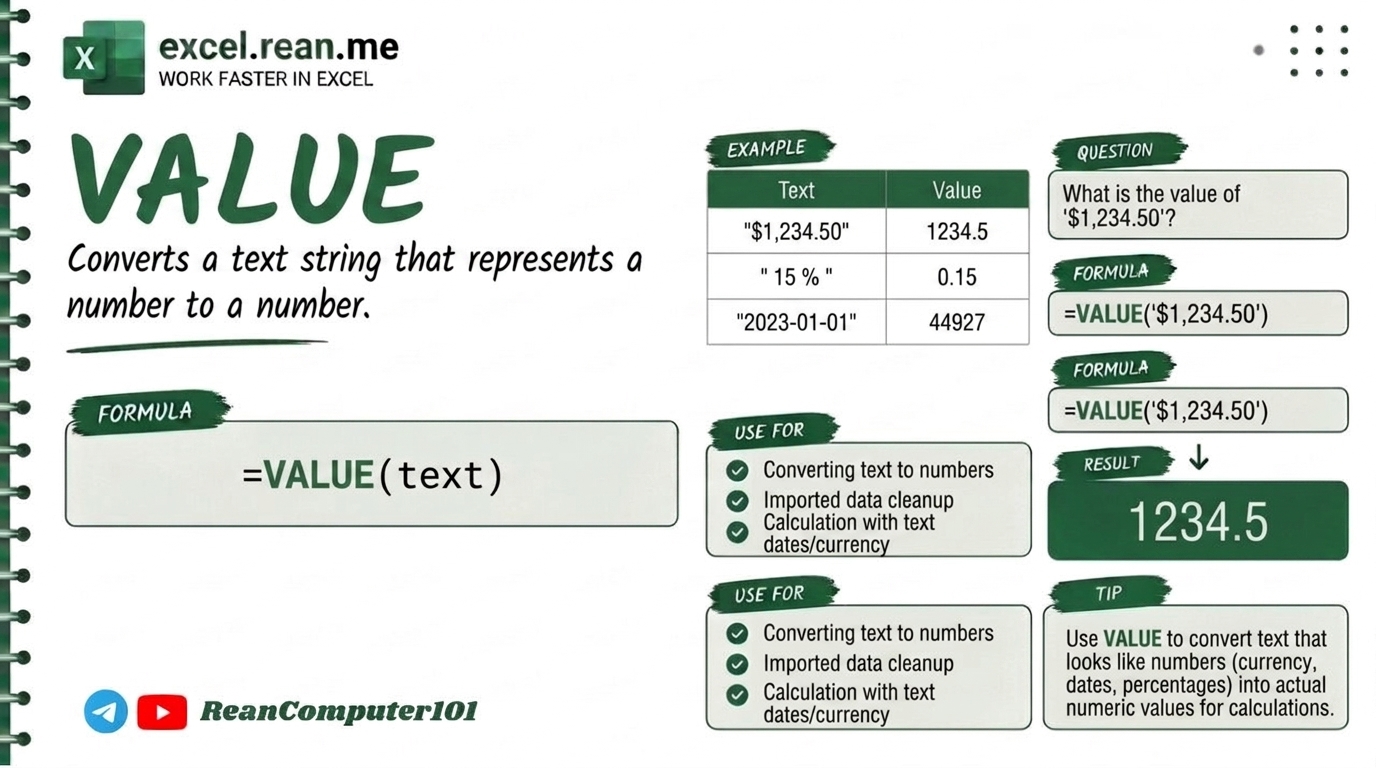
Learn how to convert text numbers to real numbers in Excel using VALUE formula step by step with easy examples.
Hello everyone! Today i will show you how to convert text format number to real actual number in Excel step by step using VALUE formula.
If you have list of numbers in Excel spreadsheet but it saved as text format (example: "5000" instead of 5000 with green triangle warning icon), Excel cannot calculate math like SUM or AVERAGE! The VALUE formula help you convert text to real number very fast and easy!
📚 Related Tutorial: Want to add numbers after converting? Check out How to Use SUM Function in Excel!
🛠️ Formula Syntax & How It Works
=VALUE(text)
text: The text cell containing numbers you want to convert (example:A2or"500").
📊 Simple Examples
Example 1: Convert Text Number "500" to Number 500
If cell A2 contain text "500":
=VALUE(A2)
- Result:
500(now you can sum and calculate!)
Example 2: Convert Currency Text "$1,250" to Number 1250
If cell A2 contain text "$1,250":
=VALUE(A2)
- Result:
1250
💡 Pro Tips for VALUE Formula
- Fast Math Trick (Multiply by 1): You can also multiply cell by
1without typingVALUE():=A2 * 1 - Double Negative Trick (
--): Type--A2to convert text number to real number instantly!=--A2 - Remove Hidden Spaces First: If text have extra space, combine
VALUEwithTRIM:=VALUE(TRIM(A2)) - Paste Special Multiply (Convert Whole Column without Formula):
- Type number
1in any blank cell and copy (Ctrl + C). - Highlight all your text number cells.
- Right-click ➔ Paste Special ➔ select Multiply ➔ click OK!
- Type number
📚 Related Tutorials
Related Tutorials
Opens in new tab ↗How to Use the NUMBERVALUE Formula in Excel (video in khmer) + Tips
Learn how to convert text numbers to real numbers in Excel using NUMBERVALUE formula step by step with easy examples.
How to Use the WEEKNUM Function in Excel (video in khmer)
Learn how to get the week number of the year from a date in Excel using WEEKNUM formula step by step with simple examples.
How to Use the WEEKDAY Function in Excel (video in khmer)
Learn how to get the day number from a date in Excel using WEEKDAY formula step by step with easy examples.