How to Use IF Function in Excel with Multiple Examples (Video in Khmer)
Learn how to use IF function in Excel step-by-step with simple examples. Learn Excel Khmer.
Hello everyone! Today I show you very easy step-by-step how to use IF() function in Microsoft Excel with multiple real examples.
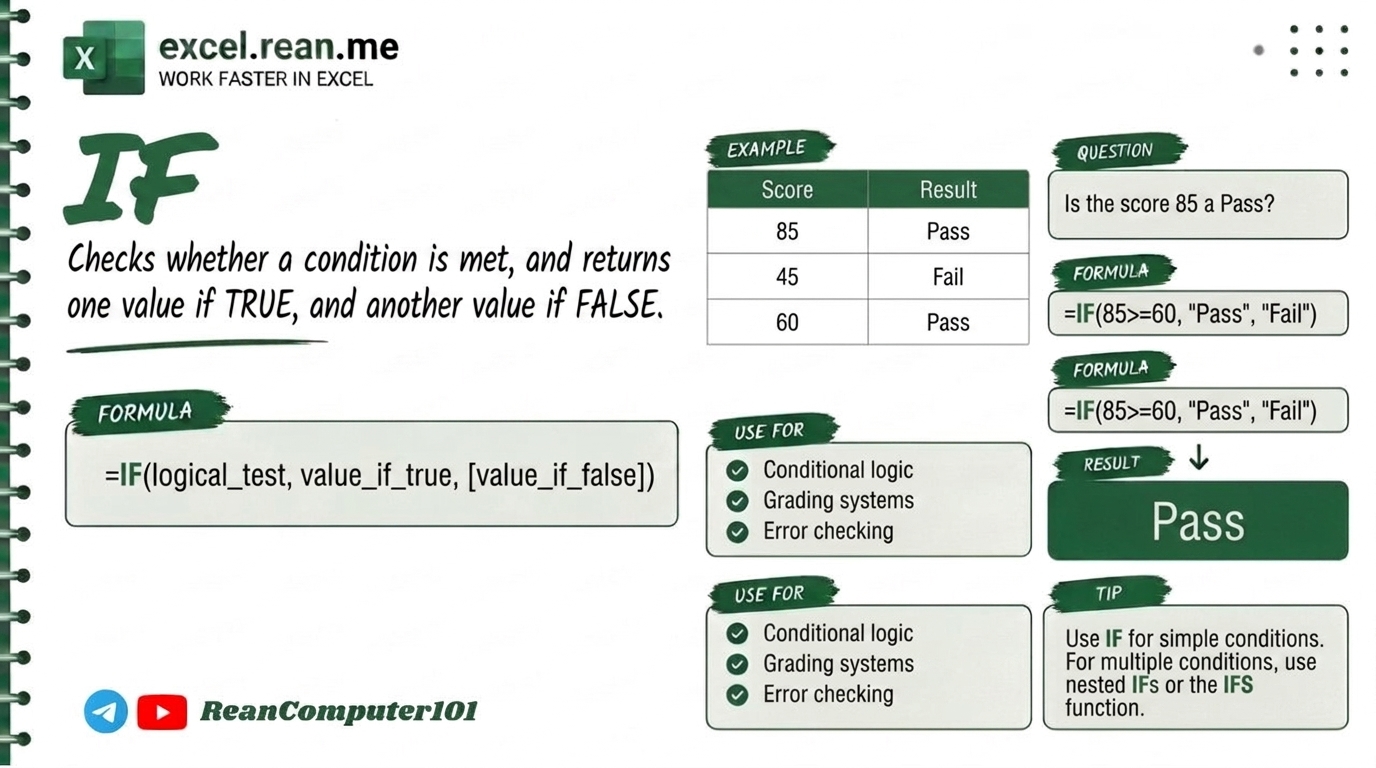
IF function is one of the most important formulas in Excel. It help you make decision inside your spreadsheet. Like when student score is higher than 50, show "Pass", if not show "Fail"!
🛠️ How IF Function Work?
The IF function check a condition. If condition is TRUE, it give you one result. If condition is FALSE, it give you another result.
Formula Syntax:
=IF(logical_test, value_if_true, value_if_false)
| Parameter | Meaning |
|---|---|
logical_test | The condition you want to check (example: A2 > 50) |
value_if_true | What to show if condition is TRUE (example: "Pass") |
value_if_false | What to show if condition is FALSE (example: "Fail") |
📺 Example #1: Simple IF Function (Score Pass or Fail)
If cell A2 has score 75:
=IF(A2 >= 50, "Pass", "Fail")
- Result:
Pass(because75is greater than or equal to50)
If score was 30:
- Result:
Fail(because30is less than50)
📺 Example #2: IF with Number Comparison (Bonus or No Bonus)
If cell B2 has sales amount and you want to give bonus when sales more than 1000:
=IF(B2 > 1000, "Get Bonus!", "No Bonus")
- If
B2=1500→ Result:Get Bonus! - If
B2=800→ Result:No Bonus
📺 Example #3: Nested IF Function in Excel (IF inside IF)
When you have more than 2 conditions, you can put IF inside another IF. Example for grading system:
=IF(A2 >= 90, "A", IF(A2 >= 80, "B", IF(A2 >= 70, "C", IF(A2 >= 60, "D", "F"))))
| Score | Result |
|---|---|
| 95 | A |
| 82 | B |
| 71 | C |
| 63 | D |
| 45 | F |
📚 Related Tutorial: Learn more foundational formulas in our guide on Top 15 Basic Excel Formulas for Beginners ↗!
💡 Easy Pro Tips for IF Function
- Text Value Must Have Quotes: If your result is text like
"Pass"or"Fail", always put double quotes around it! If no quotes, Excel will show error. - Numbers Don't Need Quotes: If your result is a number like
100or0, don't use quotes. - Use IFS for Many Conditions: If you have more than 3 or 4 levels, instead of many nested IF, use
=IFS()function (Excel 2019+). It is much cleaner!=IFS(A2>=90,"A", A2>=80,"B", A2>=70,"C", A2>=60,"D", TRUE,"F")
Related Tutorials
Opens in new tab ↗How to Use TIMEVALUE Function in Excel (Video in Khmer)
Learn how to use TIMEVALUE function in Excel step-by-step with simple examples to convert text time into real Excel time.
How to Use the VALUE Function in Excel (video in khmer) + Tips
Learn how to convert text numbers to real numbers in Excel using VALUE formula step by step with easy examples.
How to Use the WEEKNUM Function in Excel (video in khmer)
Learn how to get the week number of the year from a date in Excel using WEEKNUM formula step by step with simple examples.