Essential Microsoft PowerPoint Keyboard Shortcuts Every Presenter Should Know (Download Free)
Design slides faster and deliver seamless presentations. Master these essential Microsoft PowerPoint keyboard shortcuts for slide navigation, shape alignment, text formatting, and presentation controls.
Whether you are designing slides for a business deck or presenting live in front of an audience, constantly reaching for your mouse slows down your workflow and disrupts your delivery. Mastering Microsoft PowerPoint keyboard shortcuts helps you build polished presentations faster and command your live slideshow like a pro.
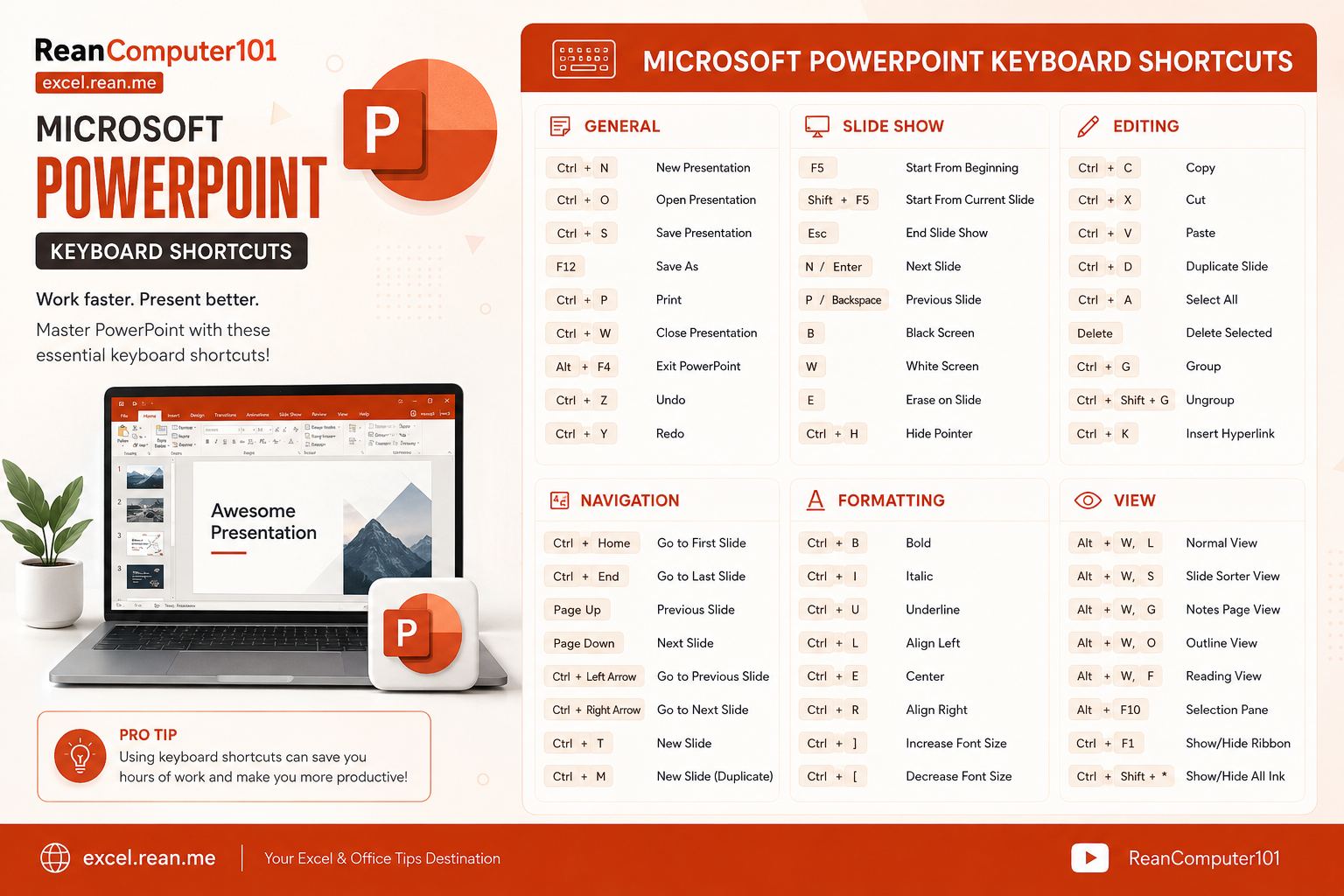 Download High Resolution Image at the end of the post.
Below is a complete guide to the most essential PowerPoint shortcuts, divided into clear categories for both Windows and Mac.
1. Slide Creation & Deck Management
Use these shortcuts while building and arranging slides in editing mode.
| Action | Windows Shortcut | Mac Shortcut |
|---|---|---|
| Insert a new slide | Ctrl + M | Cmd + M |
| Duplicate selected slide | Ctrl + D | Cmd + D |
| Open a new presentation | Ctrl + N | Cmd + N |
| Save active presentation | Ctrl + S | Cmd + S |
| Open "Save As" dialog | F12 | Cmd + Shift + S |
| Delete selected slide | Delete or Backspace | Delete |
| Move slide up in outline view | Alt + Shift + Up Arrow | Option + Shift + Up Arrow |
| Move slide down in outline view | Alt + Shift + Down Arrow | Option + Shift + Down Arrow |
| Zoom in / Zoom out slide view | Ctrl + Mouse Wheel | Cmd + Plus / Minus |
| Close presentation | Ctrl + W | Cmd + W |
Tip: Pressing
Ctrl+M(notCtrl+N) inserts a new slide into your current deck.Ctrl+Nopens a completely new PowerPoint file!
2. Live Slide Show Controls (During Presentation)
These shortcuts give you total command over your presentation during a live meeting or public talk.
| Action | Windows Shortcut | Mac Shortcut |
|---|---|---|
| Start Slide Show from slide 1 | F5 | Cmd + Shift + Return |
| Start Slide Show from current slide | Shift + F5 | Cmd + Return |
| Advance to next slide / animation | Space, N, or Right Arrow | Space or Right Arrow |
| Go back to previous slide | P, Backspace, or Left Arrow | P or Left Arrow |
| Jump to specific slide number | Slide Number + Enter | Slide Number + Return |
| Toggle Black screen (pause presentation) | B or . | B or . |
| Toggle White screen | W or , | W or , |
| Toggle Laser Pointer | Ctrl + L (or Hold Ctrl + Click) | Cmd + L |
| Toggle Pen Tool for drawing | Ctrl + P | Cmd + P |
| Toggle Highlighter Tool | Ctrl + I | Cmd + I |
| Erase all ink drawings on screen | E | E |
| Hide / Show mouse pointer | Ctrl + H | Cmd + H |
| End Slide Show presentation | Esc | Esc |
Pro Tip: During a live talk, press
Bto turn the screen completely black (orWfor white). This redirects all audience eye contact back to you when you want to make a key point without slide distraction!
3. Shapes, Pictures & Object Editing
Aligning, duplicating, and layering icons, text frames, and graphics is much faster with these editing shortcuts.
| Action | Windows Shortcut | Mac Shortcut |
|---|---|---|
| Group selected objects | Ctrl + G | Cmd + Option + G |
| Ungroup objects | Ctrl + Shift + G | Cmd + Option + Shift + G |
| Duplicate object / shape | Ctrl + D (or Ctrl + Drag) | Cmd + D (or Option + Drag) |
| Maintain aspect ratio while resizing | Hold Shift while dragging handle | Hold Shift while dragging handle |
| Resize object from its center | Hold Ctrl while dragging handle | Hold Option while dragging handle |
| Constrain movement horizontally/vertically | Hold Shift while dragging object | Hold Shift while dragging object |
| Bring object to Front | Ctrl + Shift + ] | Cmd + Shift + ] |
| Send object to Back | Ctrl + Shift + [ | Cmd + Shift + [ |
| Copy Shape Format (Format Painter) | Ctrl + Shift + C | Cmd + Shift + C |
| Paste Shape Format | Ctrl + Shift + V | Cmd + Shift + V |
| Select next object on slide | Tab | Tab |
| Select previous object on slide | Shift + Tab | Shift + Tab |
4. Text Formatting & Alignment
Keep typography consistent across titles, bullet points, and text boxes.
| Format Action | Windows Shortcut | Mac Shortcut |
|---|---|---|
| Bold text | Ctrl + B | Cmd + B |
| Italic text | Ctrl + I | Cmd + I |
| Underline text | Ctrl + U | Cmd + U |
| Align Left | Ctrl + L | Cmd + L |
| Center Align | Ctrl + E | Cmd + E |
| Align Right | Ctrl + R | Cmd + R |
| Justify Align | Ctrl + J | Cmd + J |
| Increase Font Size | Ctrl + Shift + > | Cmd + Shift + > |
| Decrease Font Size | Ctrl + Shift + < | Cmd + Shift + < |
| Change Text Case (UPPER, lower, Title) | Shift + F3 | Shift + F3 |
| Clear All Text Formatting | Ctrl + Space | Cmd + Option + Space |
5. Audio & Video Media Playback Controls
Control video clips and audio tracks embedded in your slides during presentation mode.
| Media Action | Windows Shortcut | Mac Shortcut |
|---|---|---|
| Play / Pause embedded video or audio | Alt + P (or Space) | Space |
| Stop media playback | Alt + Q | Cmd + Period |
| Mute / Unmute audio | Alt + U | Option + M |
| Increase Volume | Alt + Up Arrow | Option + Up Arrow |
| Decrease Volume | Alt + Down Arrow | Option + Down Arrow |
| Skip forward 3 seconds | Alt + Shift + Page Down | Option + Shift + Page Down |
| Skip backward 3 seconds | Alt + Shift + Page Up | Option + Shift + Page Up |
Quick Reference Summary Table
Here is a quick cheat sheet of the top 12 PowerPoint shortcuts every user should memorize:
| Action | Windows Shortcut | Mac Shortcut | Best Used For |
|---|---|---|---|
| New Slide | Ctrl + M | Cmd + M | Quick deck building |
| Duplicate Slide/Object | Ctrl + D | Cmd + D | Replicating layouts instantly |
| Start Slide Show | F5 | Cmd + Shift + Return | Presenting from beginning |
| Start From Current Slide | Shift + F5 | Cmd + Return | Testing active slide during editing |
| Black Out Screen | B | B | Drawing audience attention to presenter |
| White Out Screen | W | W | Pausing presentation visual |
| Group Objects | Ctrl + G | Cmd + Option + G | Combining shapes into single graphic |
| Ungroup Objects | Ctrl + Shift + G | Cmd + Option + Shift + G | Splitting grouped graphics |
| Laser Pointer | Ctrl + L | Cmd + L | Highlighting slide elements live |
| Pen Tool | Ctrl + P | Cmd + P | Annotating on slide live |
| Copy Format | Ctrl + Shift + C | Cmd + Shift + C | Copying shape or text styling |
| Paste Format | Ctrl + Shift + V | Cmd + Shift + V | Applying copied styling |
Download PowerPoint Keyboard Shortcuts
👉 📥 Download High Resolution Image
Summary & Next Steps
Mastering PowerPoint shortcuts transforms how you build slides and deliver talks. Start by integrating Ctrl + M for new slides, Shift + F5 to preview your active slide, and B to pause your live slideshow. Once these become second nature, add object grouping (Ctrl + G) and shape formatting shortcuts to your daily presentation workflow!
📚 Useful Resources
- Top Microsoft PowerPoint Tips and Tricks Every Presenter Should Know (Download Free)
- Essential Microsoft Word Keyboard Shortcuts Every User Should Know (Download Free)
- Essential Excel Keyboard Shortcuts Every User Should Know (Download Free)
- How to Print Documents in Word, Excel, and PowerPoint
- Free Download PDF - Learn Computer, Word, Excel, & PowerPoint (Khmer Language)
Related Tutorials
Opens in new tab ↗Top Microsoft PowerPoint Tips and Tricks Every Presenter Should Know (Download Free)
Transform your PowerPoint presentations. Discover game-changing tips and tricks including Morph transitions, SmartArt text conversions, Eyedropper color matching, Slide Master, background removal, and live presenter tricks.
Essential Microsoft Word Keyboard Shortcuts Every User Should Know (Download Free)
Stop wasting time searching through Word ribbon tabs. Master these high-frequency Microsoft Word keyboard shortcuts for navigation, formatting, paragraph alignment, line spacing, and document editing.
Essential Excel Keyboard Shortcuts Every User Should Know (Download Free)
Stop reaching for the mouse. Master these high-frequency Excel shortcuts to navigate, select, format, and edit data significantly faster.