Essential Microsoft Word Keyboard Shortcuts Every User Should Know (Download Free)
Stop wasting time searching through Word ribbon tabs. Master these high-frequency Microsoft Word keyboard shortcuts for navigation, formatting, paragraph alignment, line spacing, and document editing.
Reaching for your mouse to format headings, change line spacing, align text, or navigate long documents adds up to dozens of wasted hours every month. Learning essential Microsoft Word keyboard shortcuts can instantly boost your typing speed and document layout productivity.
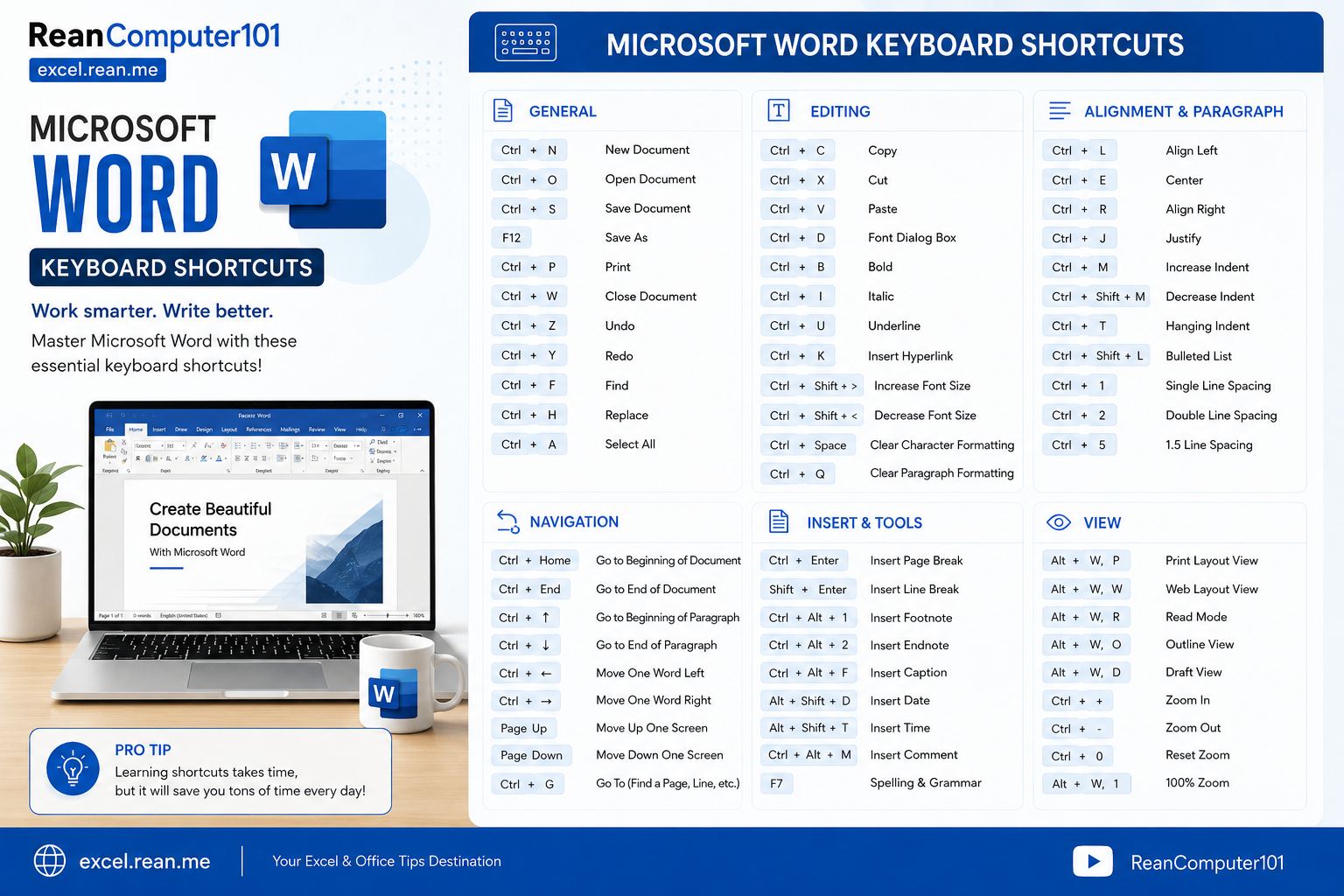
Below is a complete reference guide to the most practical Microsoft Word shortcuts, categorized by task for both Windows and Mac.
1. Essential File & Document Operations
These basic shortcuts handle creating, opening, saving, printing, and undoing actions in Word documents.
| Action | Windows Shortcut | Mac Shortcut |
|---|---|---|
| Create a new document | Ctrl + N | Cmd + N |
| Open an existing document | Ctrl + O | Cmd + O |
| Save active document | Ctrl + S | Cmd + S |
| Open "Save As" dialog | F12 | Cmd + Shift + S |
| Print document | Ctrl + P | Cmd + P |
| Close active document | Ctrl + W | Cmd + W |
| Undo previous action | Ctrl + Z | Cmd + Z |
| Redo / Repeat last action | Ctrl + Y or F4 | Cmd + Y |
| Close Microsoft Word | Alt + F4 | Cmd + Q |
Tip:
F4repeats your very last editing command! For example, if you highlight text and change its color to dark blue, pressingF4on another selected block of text immediately applies dark blue without opening the font menu again.
2. Fast Navigation & Moving Cursor
Navigating page by page or word by word is much faster using modifier keys.
| Action | Windows Shortcut | Mac Shortcut |
|---|---|---|
| Move left/right one word | Ctrl + Left / Right Arrow | Option + Left / Right Arrow |
| Move up/down one paragraph | Ctrl + Up / Down Arrow | Option + Up / Down Arrow |
| Move to beginning of line | Home | Cmd + Left Arrow |
| Move to end of line | End | Cmd + Right Arrow |
| Jump to beginning of document | Ctrl + Home | Cmd + Home or Cmd + Fn + Left |
| Jump to end of document | Ctrl + End | Cmd + End or Cmd + Fn + Right |
| Page Up / Page Down | Page Up / Page Down | Fn + Up / Down Arrow |
| Jump to top / bottom of screen | Ctrl + Page Up / Page Down | Cmd + Page Up / Page Down |
| Go to last edited position | Shift + F5 | Shift + F5 |
3. Highlighting and Selecting Text
Selecting text without dragging the mouse gives you exact control over words, sentences, and paragraphs.
| Action | Windows Shortcut | Mac Shortcut |
|---|---|---|
| Select text character by character | Shift + Left / Right Arrow | Shift + Left / Right Arrow |
| Select word by word | Ctrl + Shift + Left / Right | Option + Shift + Left / Right |
| Select to beginning / end of line | Shift + Home / End | Cmd + Shift + Left / Right |
| Select line by line (up/down) | Shift + Up / Down Arrow | Shift + Up / Down Arrow |
| Select to top of document | Ctrl + Shift + Home | Cmd + Shift + Home |
| Select to end of document | Ctrl + Shift + End | Cmd + Shift + End |
| Select entire document | Ctrl + A | Cmd + A |
| Vertical rectangular text box selection | Alt + Click & Drag | Option + Click & Drag |
4. Text Formatting & Styles
Format words and change typography instantly without taking your hands off the keyboard.
| Format Action | Windows Shortcut | Mac Shortcut |
|---|---|---|
| Apply Bold styling | Ctrl + B | Cmd + B |
| Apply Italic styling | Ctrl + I | Cmd + I |
| Apply Underline | Ctrl + U | Cmd + U |
| Apply Double Underline | Ctrl + Shift + D | Cmd + Shift + D |
| Underline words only (skip spaces) | Ctrl + Shift + W | Cmd + Shift + W |
| Change Text Case (UPPER, lower, Title) | Shift + F3 | Shift + F3 |
| ALL CAPS format toggle | Ctrl + Shift + A | Cmd + Shift + A |
| Apply Subscript ($X_2$) | Ctrl + = | Cmd + = |
| Apply Superscript ($X^2$) | Ctrl + Shift + + | Cmd + Shift + + |
| Increase Font Size | Ctrl + ] or Ctrl + Shift + > | Cmd + ] or Cmd + Shift + > |
| Decrease Font Size | Ctrl + [ or Ctrl + Shift + < | Cmd + [ or Cmd + Shift + < |
| Copy Formatting (Format Painter) | Ctrl + Shift + C | Cmd + Shift + C |
| Paste Formatting | Ctrl + Shift + V | Cmd + Shift + V |
| Clear All Formatting | Ctrl + Space | Cmd + Option + Space |
Pro Tip: Select text and press
Shift+F3repeatedly to cycle between ALL UPPERCASE, all lowercase, and Title Case instantly!
5. Paragraph Alignment, Indents & Spacing
Speed up document design by adjusting line spacing and alignment via shortcuts.
| Alignment / Spacing Action | Windows Shortcut | Mac Shortcut |
|---|---|---|
| Align Left | Ctrl + L | Cmd + L |
| Center Align | Ctrl + E | Cmd + E |
| Align Right | Ctrl + R | Cmd + R |
| Justify Align | Ctrl + J | Cmd + J |
| Single Line Spacing (1.0) | Ctrl + 1 | Cmd + 1 |
| Double Line Spacing (2.0) | Ctrl + 2 | Cmd + 2 |
| 1.5 Line Spacing | Ctrl + 5 | Cmd + 5 |
| Add / Remove 12pt space before paragraph | Ctrl + 0 | Cmd + 0 |
| Indent paragraph | Ctrl + M | Cmd + M |
| Remove / Un-indent paragraph | Ctrl + Shift + M | Cmd + Shift + M |
| Create Hanging Indent | Ctrl + T | Cmd + T |
6. Page Breaks, Links & Special Inserts
Quickly break pages or insert notes, comments, and symbols into your draft.
| Action | Windows Shortcut | Mac Shortcut |
|---|---|---|
| Insert Page Break | Ctrl + Enter | Cmd + Return |
| Insert Line Break (Soft return) | Shift + Enter | Shift + Return |
| Insert Hyperlink | Ctrl + K | Cmd + K |
| Insert Footnote | Ctrl + Alt + F | Cmd + Option + F |
| Insert Endnote | Ctrl + Alt + D | Cmd + Option + D |
| Insert Comment | Ctrl + Alt + M | Cmd + Option + M |
Insert Copyright Symbol (©) | Ctrl + Alt + C | Cmd + Option + C |
Insert Registered Symbol (®) | Ctrl + Alt + R | Cmd + Option + R |
Insert Trademark Symbol (™) | Ctrl + Alt + T | Cmd + Option + T |
7. Search, Replace & Table Navigation
Effortlessly locate text or maneuver inside Microsoft Word tables.
| Action | Windows Shortcut | Mac Shortcut |
|---|---|---|
| Find text in document | Ctrl + F | Cmd + F |
| Replace text in document | Ctrl + H | Cmd + H |
| Open "Go To" dialog | Ctrl + G or F5 | Cmd + G or F5 |
| Move to next cell in table | Tab | Tab |
| Move to previous cell in table | Shift + Tab | Shift + Tab |
| Jump to first cell in table row | Alt + Home | Option + Home |
| Jump to last cell in table row | Alt + End | Option + End |
| Jump to top cell in table column | Alt + Page Up | Option + Page Up |
| Jump to bottom cell in table column | Alt + Page Down | Option + Page Down |
Quick Reference Summary Table
Here is a handy summary table of the top 12 most frequently used Word keyboard shortcuts:
| Action | Windows Shortcut | Mac Shortcut | Key Benefit |
|---|---|---|---|
| Copy Format | Ctrl + Shift + C | Cmd + Shift + C | Copy font, size, & color without text |
| Paste Format | Ctrl + Shift + V | Cmd + Shift + V | Apply copied formatting instantly |
| Clear Formatting | Ctrl + Space | Cmd + Option + Space | Reset selected text back to Normal style |
| Change Case | Shift + F3 | Shift + F3 | Toggle UPPERCASE, lowercase, & Title Case |
| Repeat Action | F4 | Cmd + Y | Repeat your last formatting action |
| Page Break | Ctrl + Enter | Cmd + Return | Cleanly start a new page |
| Insert Hyperlink | Ctrl + K | Cmd + K | Link highlighted text to a web URL |
| Center Align | Ctrl + E | Cmd + E | Instantly center headings or titles |
| Double Spacing | Ctrl + 2 | Cmd + 2 | Set paragraph spacing to 2.0 |
| 1.5 Spacing | Ctrl + 5 | Cmd + 5 | Set paragraph spacing to 1.5 |
| Word-by-Word Select | Ctrl + Shift + Arrow | Option + Shift + Arrow | High-precision text selection |
| Replace Text | Ctrl + H | Cmd + H | Quickly find and replace words |
Download Microsoft Word Keyboard Shortcuts
👉 📥 Download High Resolution Image
Summary & Next Steps
Don't feel overwhelmed trying to memorize every shortcut at once. Start by picking 3 to 5 shortcuts each day—such as Shift + F3 for changing text case, Ctrl + Shift + C / V for copying styles, and Ctrl + Enter for page breaks. Incorporating them into your daily editing workflow will save you hours over time!
📚 Useful Resources
- Top Microsoft Word Tips and Tricks Every Document Creator Should Know
- Essential Excel Keyboard Shortcuts Every User Should Know
- Essential Microsoft PowerPoint Keyboard Shortcuts Every Presenter Should Know
- How to Print Documents in Word, Excel, and PowerPoint
- How to Open MS Office Apps Fast via Windows Run Command
- Free Download PDF - How to Use Microsoft Word (Khmer Language)
Related Tutorials
Opens in new tab ↗Top Microsoft Word Tips and Tricks Every Document Creator Should Know (Download Free)
Master Microsoft Word with these essential productivity tips and tricks, including Spike cut-and-paste, random text generation, instant horizontal lines, Quick Parts, vertical box selection, and PDF editing.
Essential Microsoft PowerPoint Keyboard Shortcuts Every Presenter Should Know (Download Free)
Design slides faster and deliver seamless presentations. Master these essential Microsoft PowerPoint keyboard shortcuts for slide navigation, shape alignment, text formatting, and presentation controls.
Essential Excel Keyboard Shortcuts Every User Should Know (Download Free)
Stop reaching for the mouse. Master these high-frequency Excel shortcuts to navigate, select, format, and edit data significantly faster.