Top Microsoft Word Tips and Tricks Every Document Creator Should Know (Download Free)
Master Microsoft Word with these essential productivity tips and tricks, including Spike cut-and-paste, random text generation, instant horizontal lines, Quick Parts, vertical box selection, and PDF editing.
Microsoft Word is far more than a simple text editor. Beneath its familiar ribbon interface lies a suite of powerful hidden features, secret keyboard tricks, and time-saving automation tools that can drastically improve how you write, format, and edit documents.
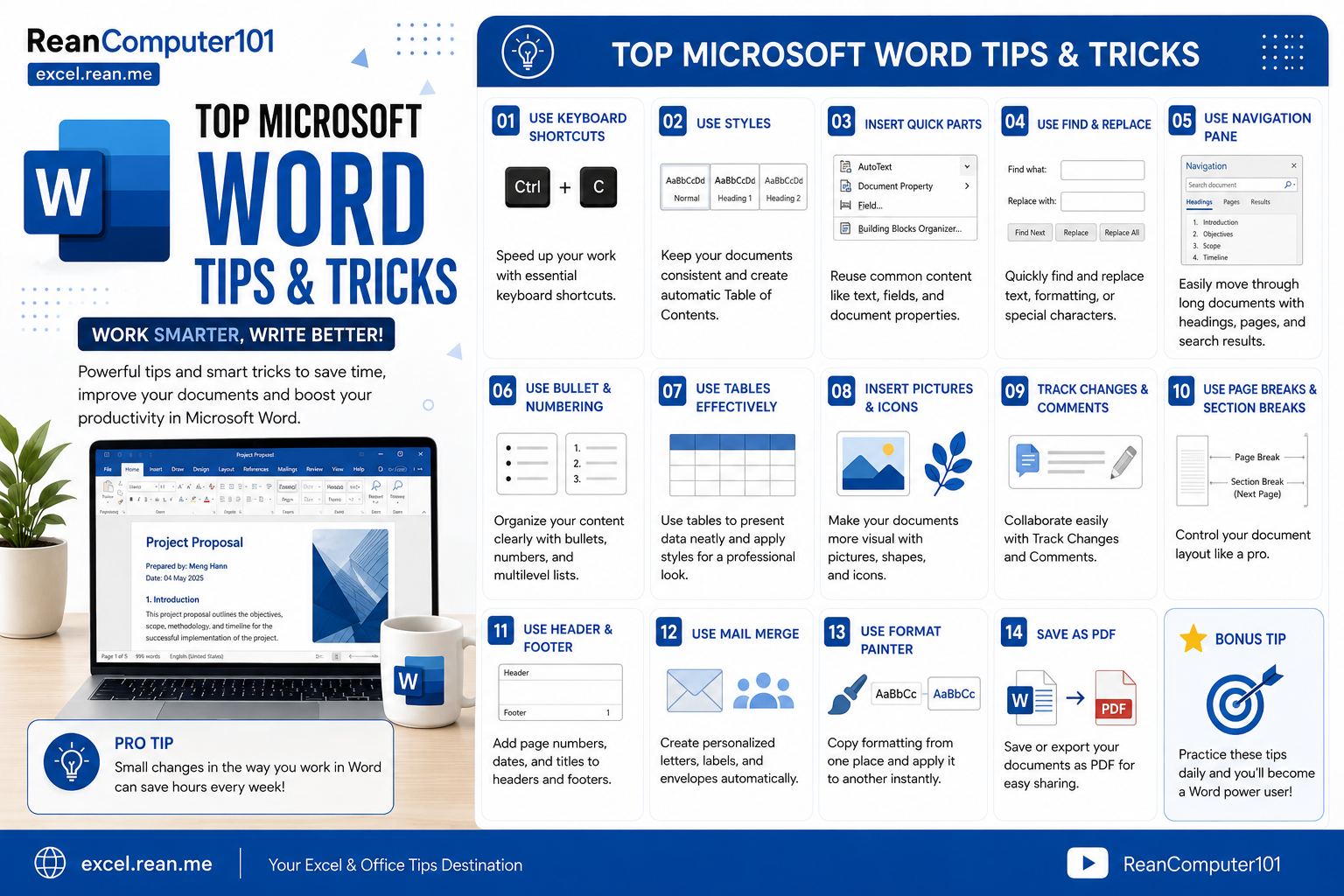 Download High Resolution Image at the end of the post.
Whether you are writing business reports, academic papers, or daily templates, here are the top Microsoft Word tips and tricks to edit and layout documents like a pro.
1. Generate Random Sample Text Instantly (=rand() & =lorem())
Need dummy placeholder text to test document layout, line spacing, or font designs? You don't need to copy text from a website.
- How it works:
- Type
=rand(3,5)on a new line and pressEnter. Word generates 3 paragraphs of official sample text, with 5 sentences per paragraph! - Type
=lorem(2,4)and pressEnterto generate classic Lorem Ipsum dummy text.
- Type
2. Cycle Text Case Instantly (Shift + F3)
Re-typing text because you forgot to turn off Caps Lock or need to convert headings to uppercase is a waste of time.
- The Trick: Highlight any text and press
Shift+F3repeatedly. - Word cycles through three modes:
- ALL UPPERCASE
- all lowercase
- Title Case (Capitalizes The First Letter Of Each Word)
3. Select Vertical Boxes of Text (Alt + Click & Drag)
Standard text selection highlights entire horizontal lines. But what if you want to select only the bullet numbers or a vertical block of text on the left side?
- How to select vertically:
- Hold down the
Altkey on Windows (orOptionon Mac). - Click and drag your mouse over any rectangular area.
- You can now format, delete, or copy just that isolated vertical block of text!
- Hold down the
4. Draw Instant Divider Lines with Symbol Shortcuts
Instead of going to Insert > Shapes > Line, you can generate clean horizontal divider lines using simple keyboard shortcuts.
On a brand new line, type any of these symbols 3 times in a row and press Enter:
| Type 3 Characters | Resulting Divider Line |
|||
| `` (three hyphens) | Single thin horizontal line |
| === (three equals) | Double solid horizontal line |
| *** (three asterisks) | Dotted horizontal line |
| ### (three number signs) | Thick center border with thin outlines |
| ~~~ (three tildes) | Wavy horizontal line |
| ___ (three underscores) | Heavy bold horizontal line |
5. Gather & Paste Multiple Items with the "Spike" (Ctrl + F3)
Standard copy-pasting allows you to store only one item at a time. The Spike is Word’s hidden multi-clipboard that collects text clips from different parts of your document and pastes them together all at once.
- How to collect text:
- Highlight the first text block and press
Ctrl+F3. (This cuts the text and stores it in the Spike). - Highlight another section elsewhere in the document and press
Ctrl+F3again. - Repeat for as many clips as you need.
- Highlight the first text block and press
- How to paste everything:
- Move to your target location and press
Ctrl+Shift+F3to paste all gathered clips in sequential order!
- Move to your target location and press
6. Copy and Paste Formatting Only (Ctrl + Shift + C / V)
Instead of manually setting font styles, font sizes, colors, and line spacing for new headings, copy the formatting directly:
- Highlight formatted text and press
Ctrl+Shift+C(orCmd+Shift+Con Mac). - Highlight unformatted target text and press
Ctrl+Shift+V(orCmd+Shift+Von Mac).
Note: This copies only the visual styling—not the actual words!
7. Save Reusable Content with Quick Parts (Alt + F3)
If you frequently type the same company disclaimer, signature block, address header, or table template, save it as a Quick Part.
- Setup:
- Highlight the text, image, or table you want to save.
- Press
Alt+F3(or go to Insert > Quick Parts > Save Selection to Quick Part Gallery). - Give it a short name (e.g.,
MySignature) and click OK.
- Usage:
- Whenever you need it, type
MySignaturein your document and pressF3. Word replaces the word with your saved block instantly!
- Whenever you need it, type
8. Reset Messy Text Back to Default (Ctrl + Space & Ctrl + Q)
When copying text from websites or PDFs, it often brings along weird fonts, unwanted background colors, and strange line breaks.
- Select the problematic text and use these two nuclear reset shortcuts:
Ctrl+Space: Strips away all character formatting (font, size, bold, color, italics) back to default text.Ctrl+Q: Strips away all custom paragraph styling (indentation, line spacing, margins) back to the Normal style template.
9. Open and Edit PDF Files Directly in Microsoft Word
You don't need a paid PDF editor to modify text or extract tables from PDF documents.
- How to edit PDFs in Word:
- Go to File > Open inside Microsoft Word.
- Select your
.pdffile. - Word automatically converts the PDF into an editable Word document with editable text, headings, and tables!
10. Double-Click Anywhere to Start Typing ("Click and Type")
You don't need to press Enter ten times to move your cursor down a blank page to position text.
- Move your mouse pointer to any blank area on the page.
- Notice how the cursor icon shows alignment lines (Left, Center, or Right).
- Double-click your left mouse button, and Word immediately places the cursor and formatting right at that exact spot!
11. Translate Documents Without Leaving Word
Word includes a built-in translation engine powered by Microsoft Translator.
- Selected Text: Highlight text → Right-click → Select Translate.
- Entire Document: Go to Review > Translate > Translate Document. Word creates a translated copy of your document while maintaining original formatting!
12. Compare Two Document Versions Side-by-Side
When reviewing revisions made by team members without Track Changes enabled, use Word’s built-in comparison tool.
- Go to Review > Compare > Compare.
- Select the Original Document and the Revised Document.
- Word generates a clean 3-pane view highlighting every single insertion, deletion, and formatting change side-by-side!
Summary Cheat Sheet: Top Word Tips
| Tip / Trick | Feature Name | Shortcut / Action | Primary Benefit |
|||||
| Dummy Text | Sample Generator | =rand(p,s) + Enter | Create instant layout testing text |
| Change Case | Toggle Upper/Lower | Shift + F3 | Change text case without retyping |
| Box Select | Vertical Rectangular Selection | Alt + Click & Drag | Select isolated columns of text |
| Line Dividers | Auto Horizontal Lines | Type `` or === + Enter | Create instant page borders |
| Multi Clipboard | The Spike | Ctrl + F3 (Cut) / Ctrl + Shift + F3 (Paste) | Collect multiple clips and paste together |
| Style Copy | Format Copy/Paste | Ctrl + Shift + C / V | Copy text formatting without text |
| Text Blocks | Quick Parts | Alt + F3 | Store reusable text & signature blocks |
| Nuke Formatting | Clear Formatting | Ctrl + Space / Ctrl + Q | Reset text to default Normal style |
| PDF Converter | Native PDF Edit | File → Open → Choose .pdf | Edit PDF files directly in Word |
| Compare Revisions | Document Compare | Review → Compare | Spot differences between two files |
Download Microsoft Word Tips and Tricks
📥 Download High Resolution ImageSummary & Next Steps
Integrating even a few of these Microsoft Word tips into your daily writing routine will save you hours of layout frustration. Try using Shift + F3 for instant case changing, Ctrl + Space to clean up copied web text, and Ctrl + Shift + C / V to copy text styles today!
📚 Useful Resources
- Essential Microsoft Word Keyboard Shortcuts Every User Should Know
- How to Print Documents in Word, Excel, and PowerPoint
- Top Microsoft PowerPoint Tips and Tricks Every Presenter Should Know
- Top Microsoft Excel Tips and Tricks Every Spreadsheet User Should Know
- How to Open MS Office Apps Fast via Windows Run Command
- Free Download PDF - How to Use Microsoft Word (Khmer Language)
Related Tutorials
Opens in new tab ↗Essential Microsoft Word Keyboard Shortcuts Every User Should Know (Download Free)
Stop wasting time searching through Word ribbon tabs. Master these high-frequency Microsoft Word keyboard shortcuts for navigation, formatting, paragraph alignment, line spacing, and document editing.
Top Microsoft PowerPoint Tips and Tricks Every Presenter Should Know (Download Free)
Transform your PowerPoint presentations. Discover game-changing tips and tricks including Morph transitions, SmartArt text conversions, Eyedropper color matching, Slide Master, background removal, and live presenter tricks.
Top Microsoft Excel Tips and Tricks Every Spreadsheet User Should Know (Download Free)
Transform the way you work in Excel. Learn powerful time-saving tips and tricks including Flash Fill, Quick Analysis, Transpose, dynamic drop-down lists, AutoSum hacks, and the hidden Camera tool.